
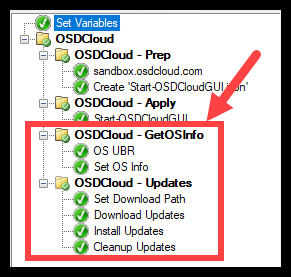

These additional steps are no longer required with the addition of some SetupComplete features that will update windows using features built into OSDCloud. See my post below on utilizing the SetupComplete option:**
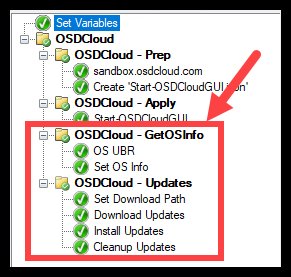
So, I think the next thing we should add to our OSDCloudGUI Task Sequence, is making sure the Operating System has the latest Cumulative Update.
Additional Information #
The whole idea for this is based on @gwblok blog post below. Import his TS into your ConfigMgr and look through it. Lots of good stuff!
- OSDCloud – ConfigMgr Integrated – Win11 OSD – GARYTOWN ConfigMgr Blog
- OSD PowerShell Module - OSD (osdeploy.com)
What are we going to do? #
- Determine what Operating System was installed
- Download Updates for that OS
- Apply the Updates
- Cleanup our Downloaded Files
Determine what Operating System was installed #
- Get the ‘UBR’ (Update Build Revision)
- This is the full Build number of the image Eg: ‘10.0.22621.2283’
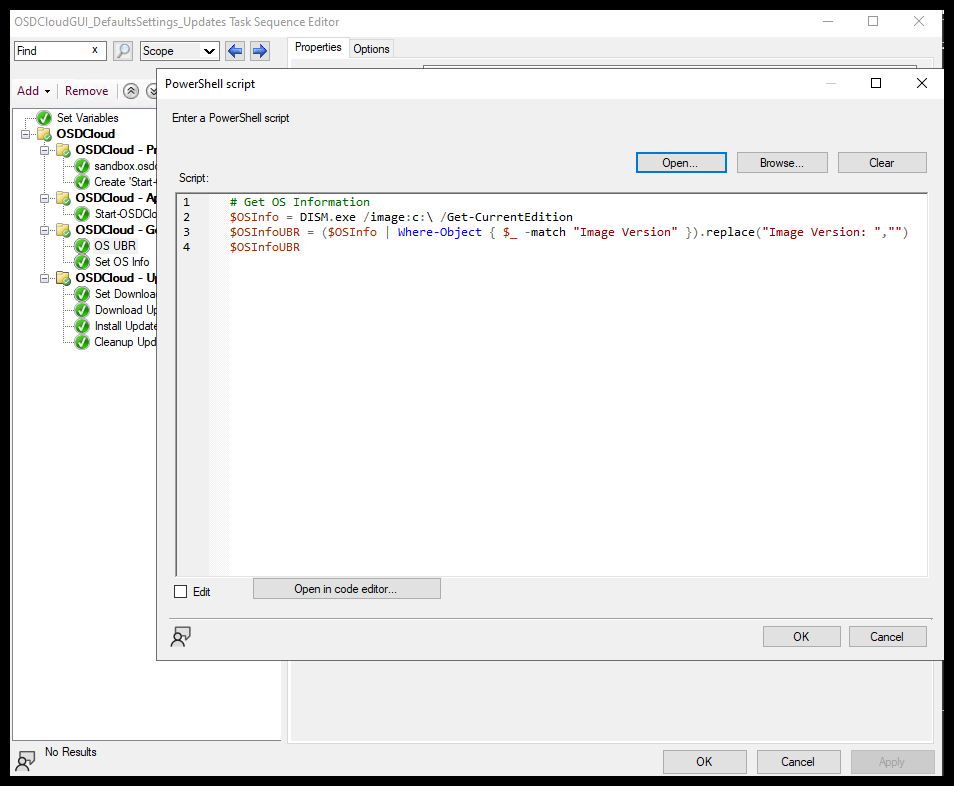
PowerShell Script
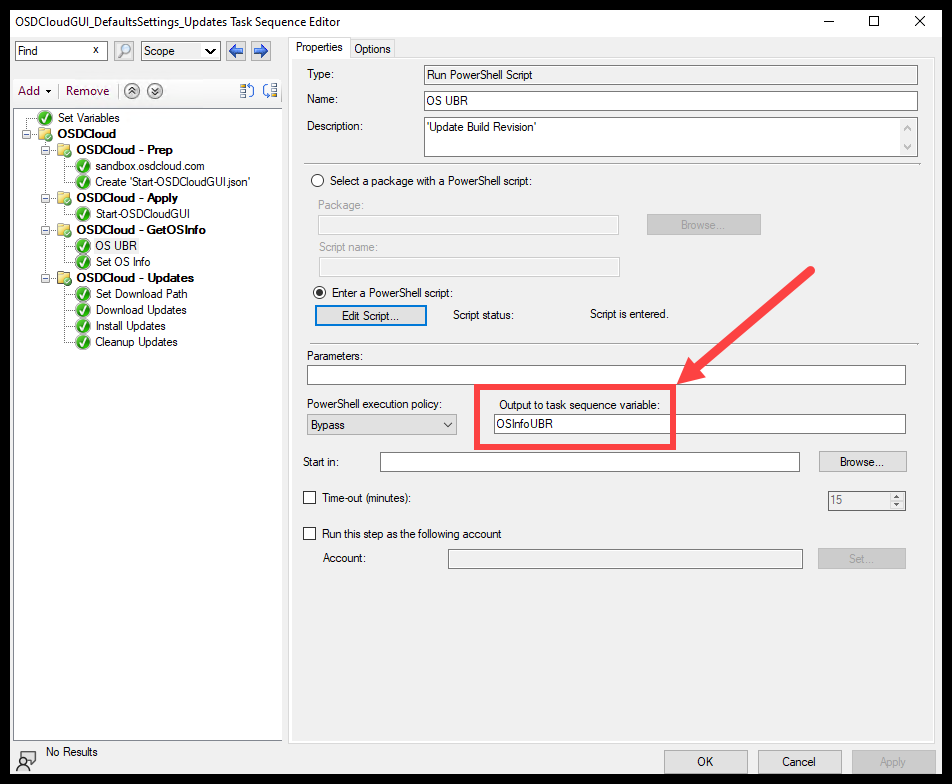
TSVariable
Using DISM, lets get the Image Version from “C:\”
# Get OS Information
$OSInfo = DISM.exe /image:c:\ /Get-CurrentEdition
$OSInfoUBR = ($OSInfo | Where-Object { $_ -match "Image Version" }).replace("Image Version: ","")
$OSInfoUBR
This will output That OS UBR to a Task sequence variable named: 'OSInfoUBR'
We will use this Variable later and Convert the Information to more normalized naming.
- Convert ‘UBR’ to ‘OSName’ and ‘OSBuildName’
- We want ‘OSName’ to be like ‘Windows 11’ or ‘Windows 10’
- And ‘OSBuildName’ needs to be like ‘22H2’ or ‘21H2’
- These will be used later against the
Get-WSUSXMLcommand
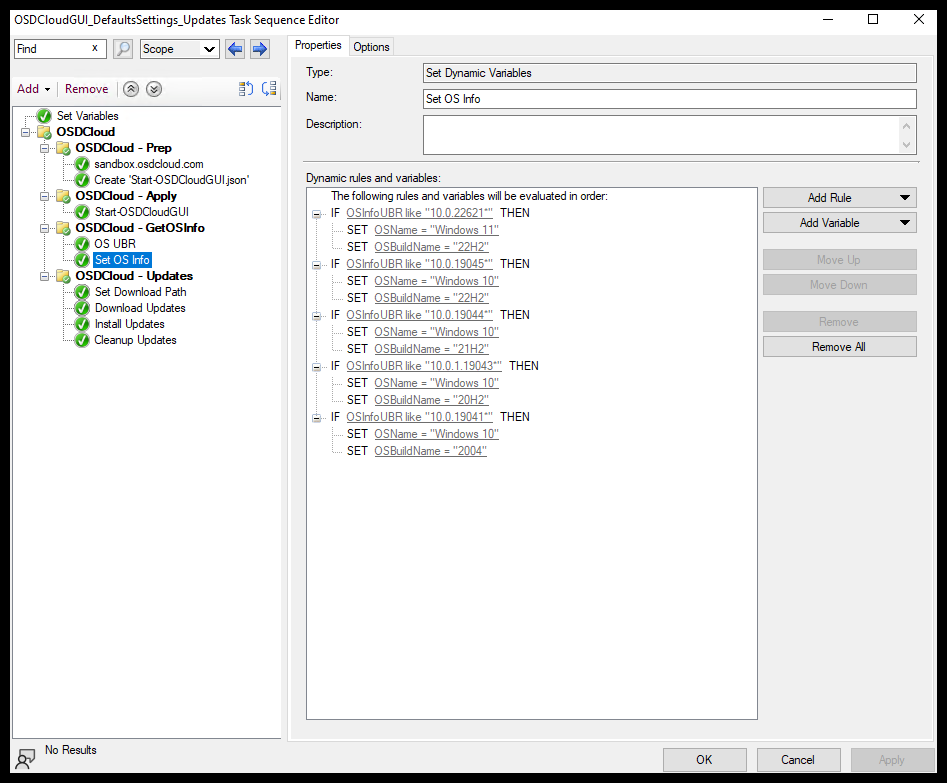
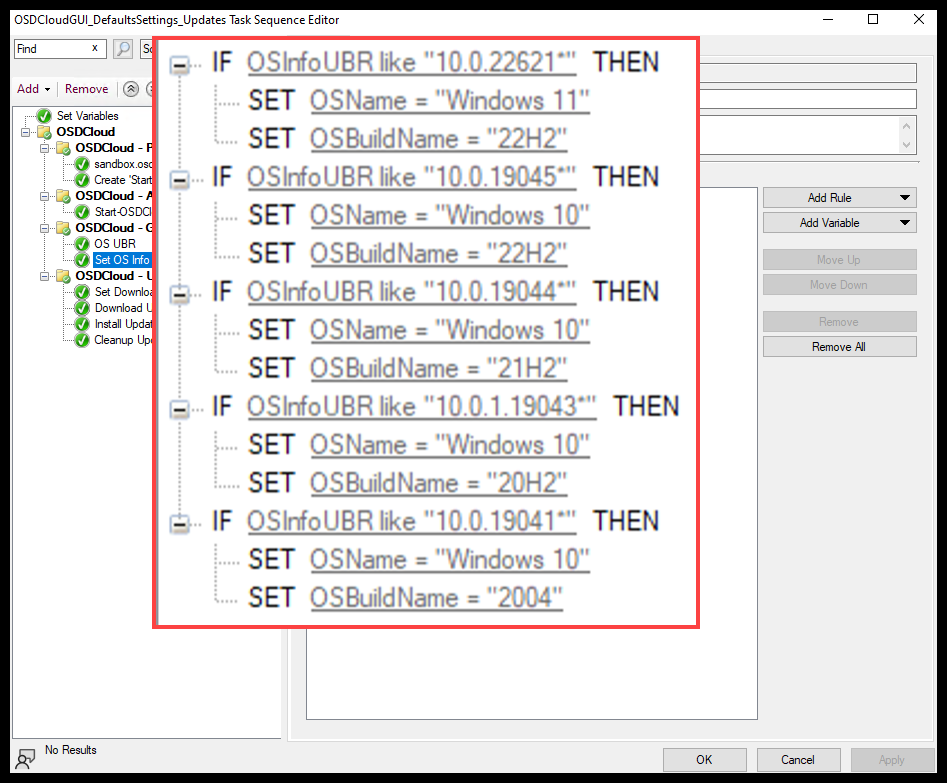
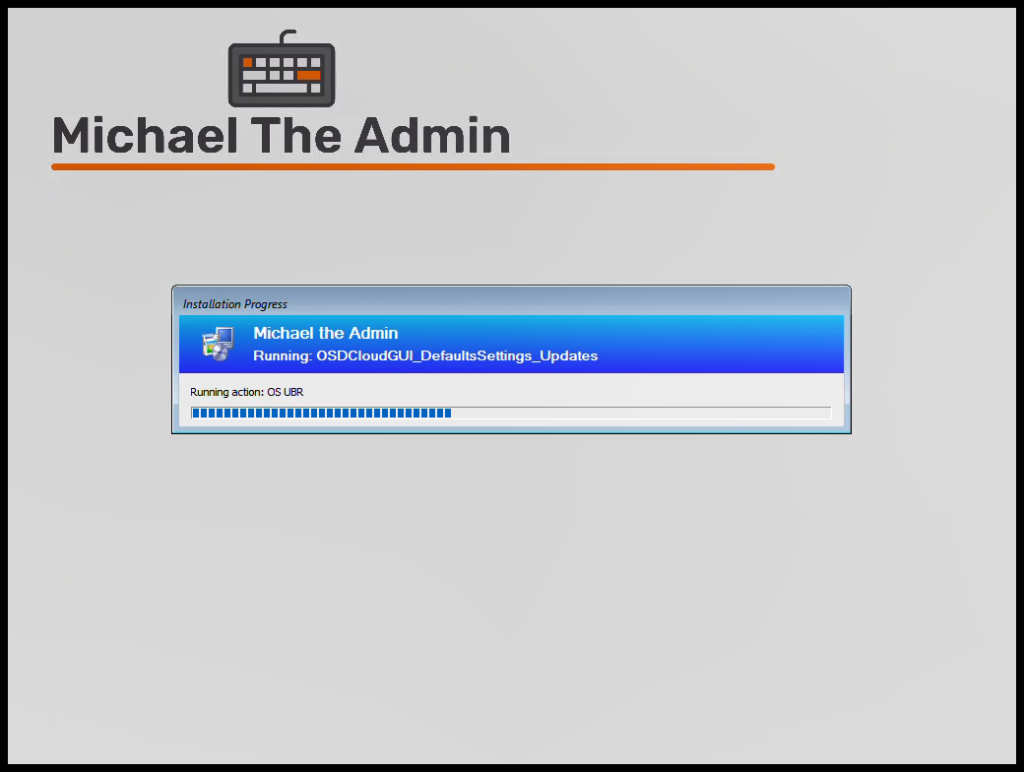
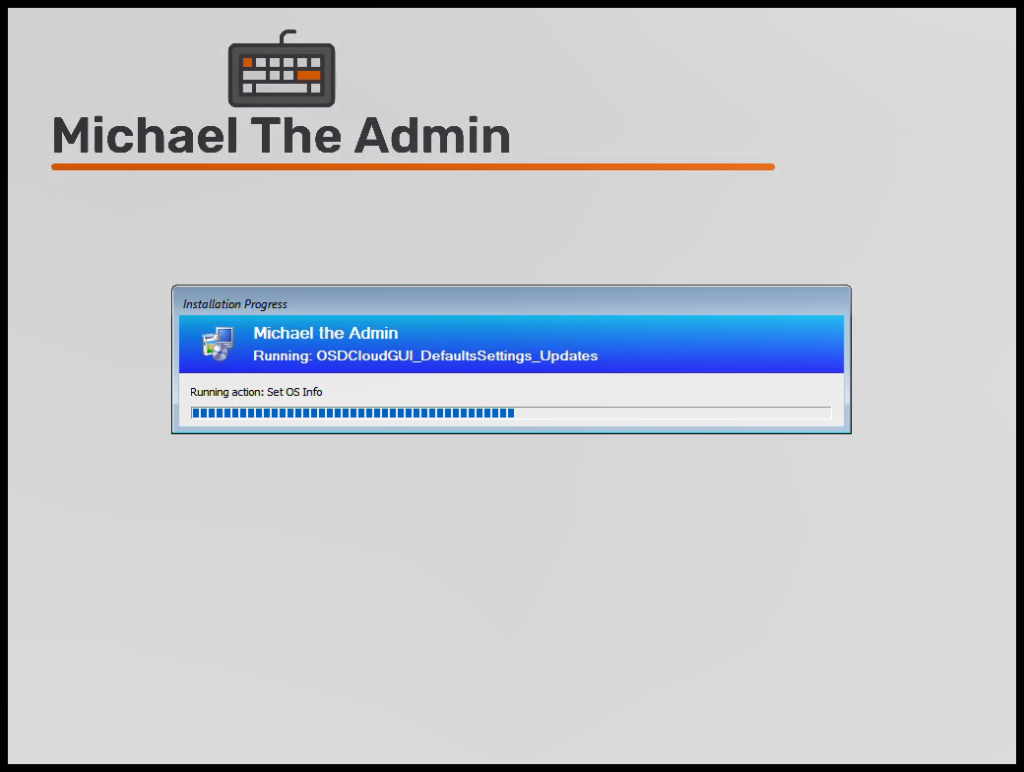
What it looks like in the Task Sequence
Download Updates #
- Set a location to download updates
- Save the Download path to a TS Variable
- Helps with Updating it later if you want it somewhere else
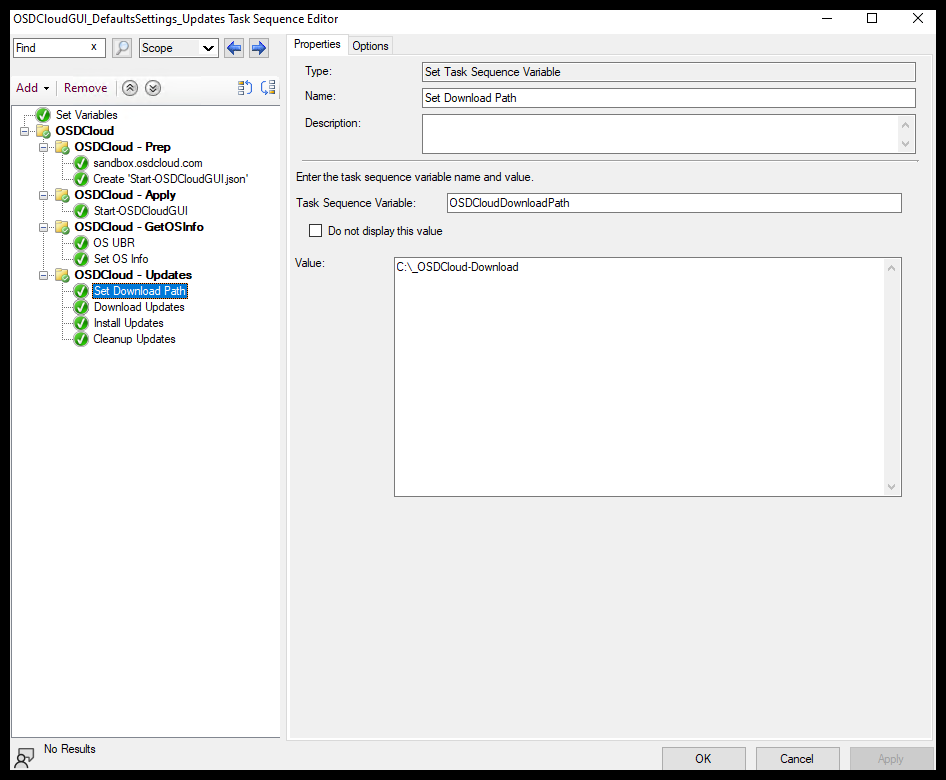
- Download Updates
- This PowerShell script takes the TS Variables
OSName,OSBuildName, andOSDCloudDownloadPathand downloads the Relevant Windows Updates - More information on using TS Variables
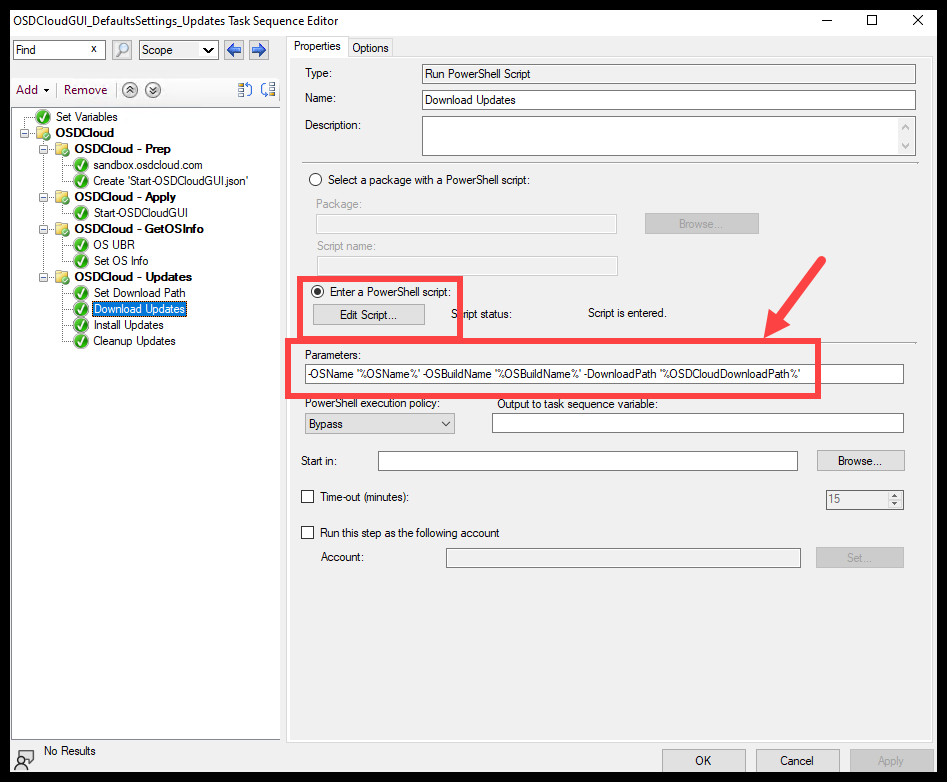
- This PowerShell script takes the TS Variables
-OSName '%OSName%' -OSBuildName '%OSBuildName%' -DownloadPath '%OSDCloudDownloadPath%'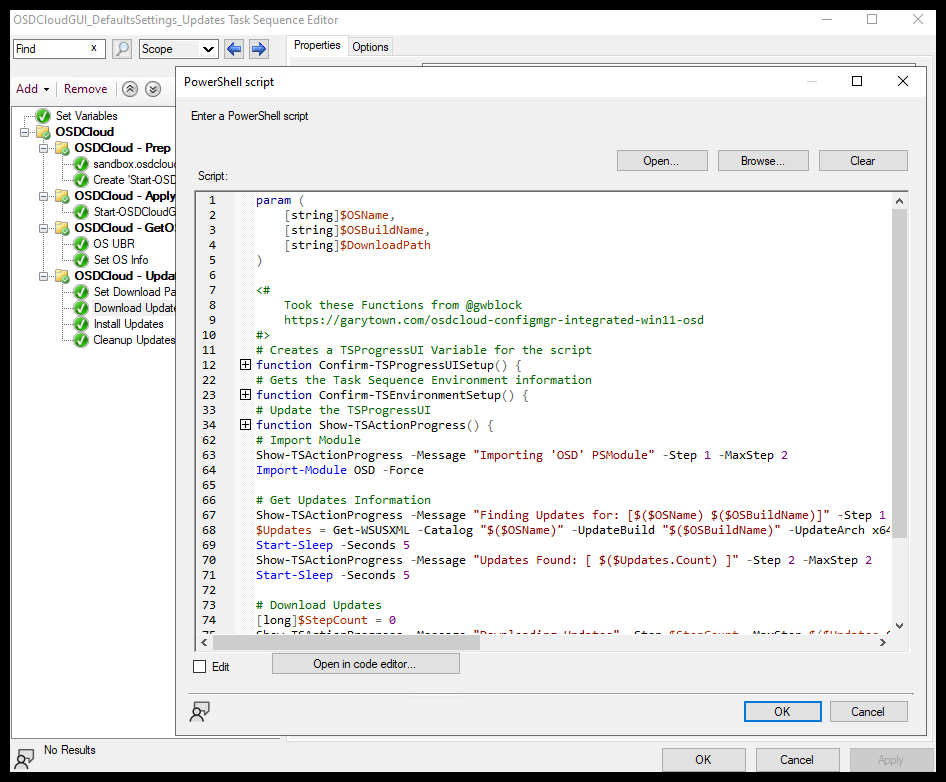
Below is the full script for this TS Step
param (
    [string]$OSName,
    [string]$OSBuildName,
    [string]$DownloadPath
)

<#
    Took these Functions from @gwblock
    https://garytown.com/osdcloud-configmgr-integrated-win11-osd
#>
# Creates a TSProgressUI Variable for the script
function Confirm-TSProgressUISetup() {
    if ($null -eq $Script:TaskSequenceProgressUi) {
        try {
            $Script:TaskSequenceProgressUi = New-Object -ComObject Microsoft.SMS.TSProgressUI
        }
        catch {
            throw "Unable to connect to the Task Sequence Progress UI! Please verify you are in a running Task Sequence Environment. Please note: TSProgressUI cannot be loaded during a prestart command.`n`nErrorDetails:`n$_"
        }
    }
}
# Gets the Task Sequence Environment information
function Confirm-TSEnvironmentSetup() {
    if ($null -eq $Script:TaskSequenceEnvironment) {
        try {
            $Script:TaskSequenceEnvironment = New-Object -ComObject Microsoft.SMS.TSEnvironment
        }
        catch {
            throw "Unable to connect to the Task Sequence Environment! Please verify you are in a running Task Sequence Environment.`n`nErrorDetails:`n$_"
        }
    }
}
# Update the TSProgressUI
function Show-TSActionProgress() {

    param(
        [Parameter(Mandatory = $true)]
        [string] $Message,
        [Parameter(Mandatory = $true)]
        [long] $Step,
        [Parameter(Mandatory = $true)]
        [long] $MaxStep
    )
    # Create TsProgressUI Script:Variable
    Confirm-TSProgressUISetup
    # Gets TS Environment Info
    Confirm-TSEnvironmentSetup

    # Update the Progress UI
    $Script:TaskSequenceProgressUi.ShowActionProgress(`
            $Script:TaskSequenceEnvironment.Value("_SMSTSOrgName"), `
            $Script:TaskSequenceEnvironment.Value("_SMSTSPackageName"), `
            $Script:TaskSequenceEnvironment.Value("_SMSTSCustomProgressDialogMessage"), `
            $Script:TaskSequenceEnvironment.Value("_SMSTSCurrentActionName"), `
            [Convert]::ToUInt32($Script:TaskSequenceEnvironment.Value("_SMSTSNextInstructionPointer")), `
            [Convert]::ToUInt32($Script:TaskSequenceEnvironment.Value("_SMSTSInstructionTableSize")), `
            $Message, `
            $Step, `
            $MaxStep)
}

# Import Module
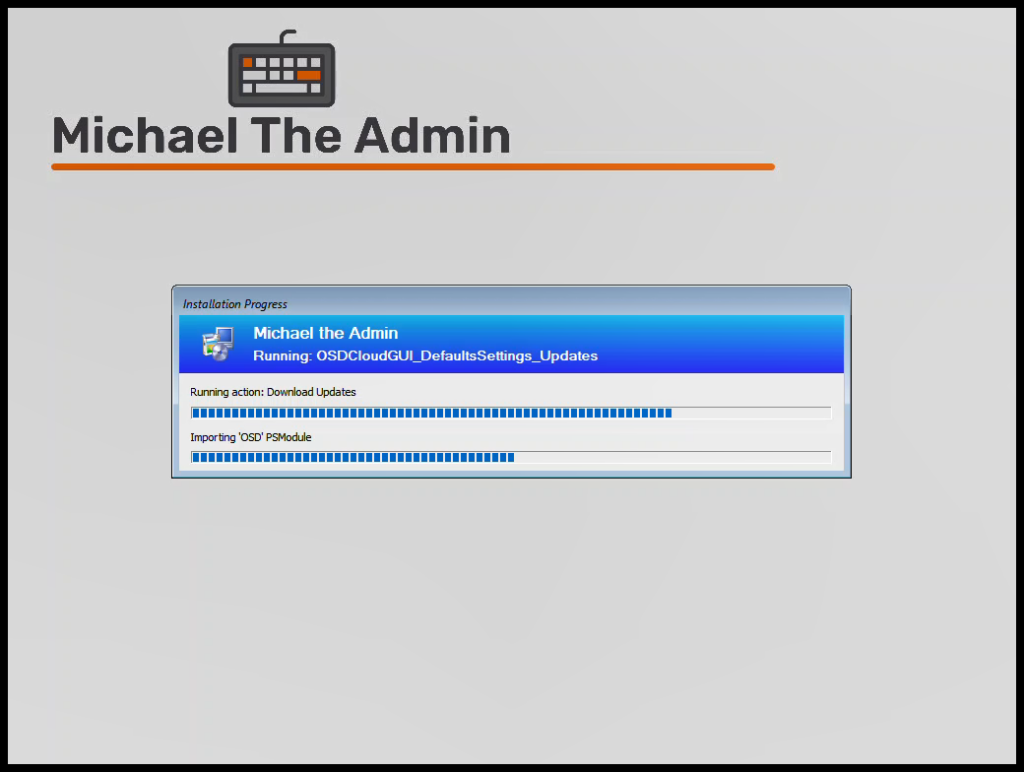
Show-TSActionProgress -Message "Importing 'OSD' PSModule" -Step 1 -MaxStep 2
Import-Module OSD -Force

# Get Updates Information
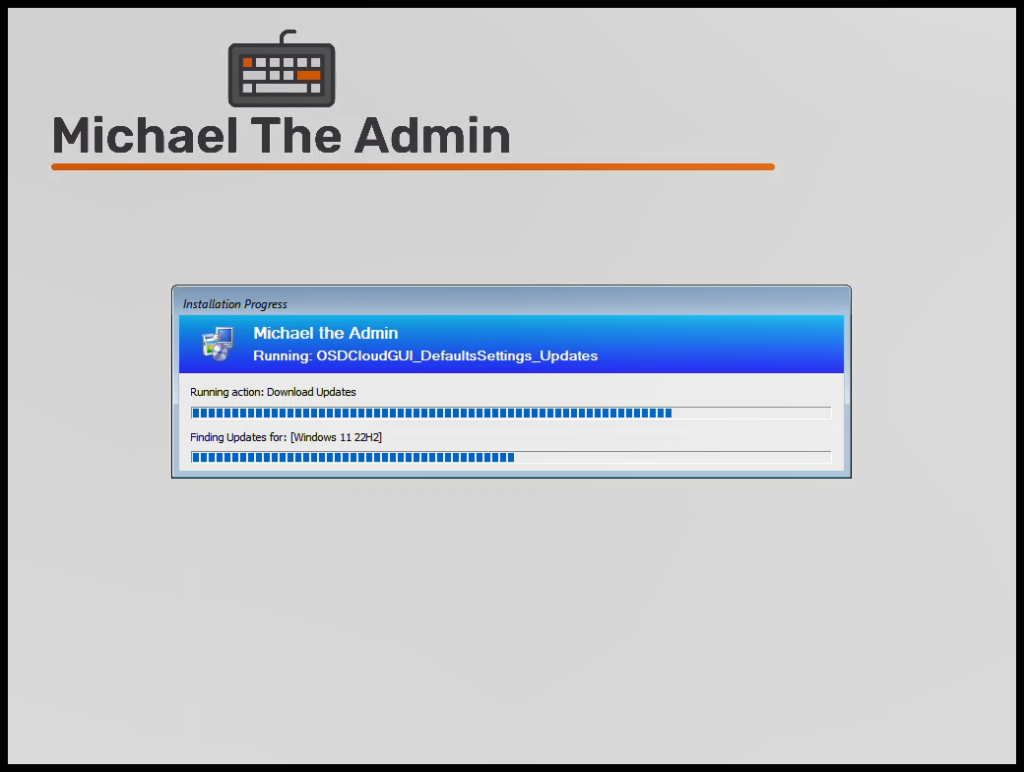
Show-TSActionProgress -Message "Finding Updates for: [$($OSName) $($OSBuildName)]" -Step 1 -MaxStep 2
$Updates = Get-WSUSXML -Catalog "$($OSName)" -UpdateBuild "$($OSBuildName)" -UpdateArch x64 | Where-Object { $_.UpdateGroup -eq 'LCU' -or $_.UpdateGroup -eq 'Optional' }
Start-Sleep -Seconds 5
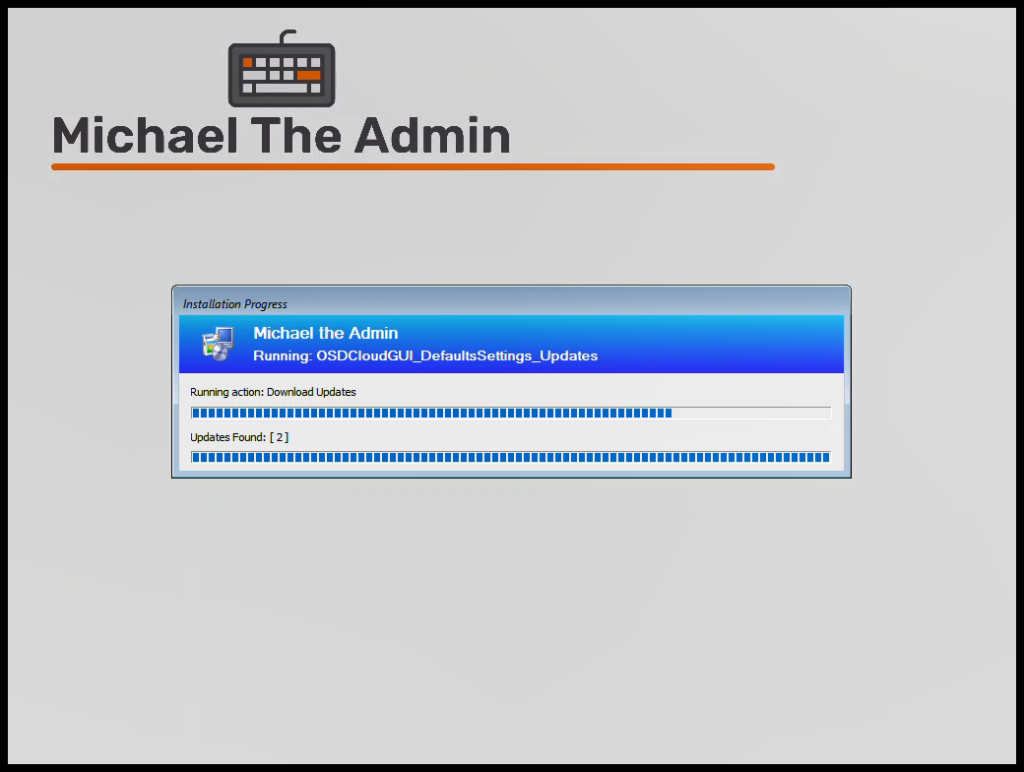
Show-TSActionProgress -Message "Updates Found: [ $($Updates.Count) ]" -Step 2 -MaxStep 2
Start-Sleep -Seconds 5

# Download Updates
[long]$StepCount = 0
Show-TSActionProgress -Message "Downloading Updates" -Step $StepCount -MaxStep $($Updates.Count + 1)
foreach ($Update in $Updates) {
    $StepCount++
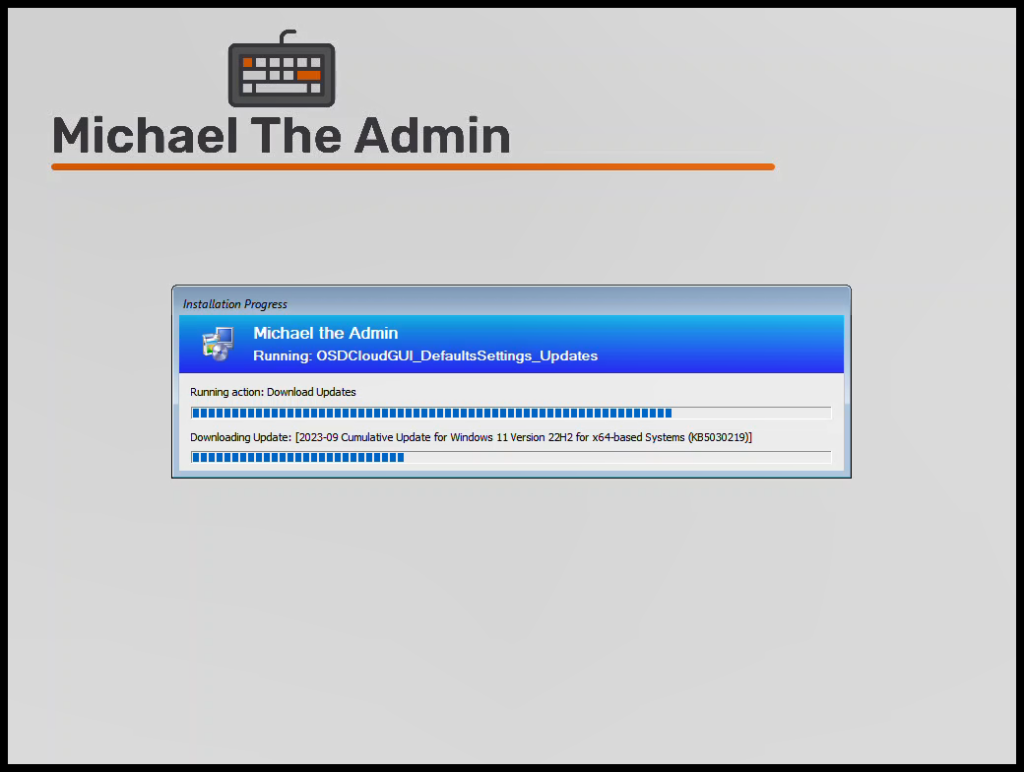
    Show-TSActionProgress -Message "Downloading Update: [$($Update.Title)]" -Step $StepCount -MaxStep ($Updates.Count + 1)
    Save-WebFile -SourceUrl $Update.FileUri -DestinationDirectory "$($DownloadPath)" -DestinationName $Update.FileName -Verbose
    Start-Sleep -Seconds 5
}
The two main parts of the script are:
- Searching for Updates
- This uses the
Get-WSUSXMLcommand that is part of theOSDModule - Then filter that list so that it is only Cumulative Updates and Optional
- This uses the
# Get Updates Information
Show-TSActionProgress -Message "Finding Updates for: [$($OSName) $($OSBuildName)]" -Step 1 -MaxStep 2
$Updates = Get-WSUSXML -Catalog "$($OSName)" -UpdateBuild "$($OSBuildName)" -UpdateArch x64 | Where-Object { $_.UpdateGroup -eq 'LCU' -or $_.UpdateGroup -eq 'Optional' }
Start-Sleep -Seconds 5
Show-TSActionProgress -Message "Updates Found: [ $($Updates.Count) ]" -Step 2 -MaxStep 2
Start-Sleep -Seconds 5- Downloading the Updates
- This uses the
Save-WebFilecommand that is part of theOSDModule - We loop through all the Updates that were found, and Save them to the DownloadPath
- This uses the
# Download Updates
[long]$StepCount = 0
Show-TSActionProgress -Message "Downloading Updates" -Step $StepCount -MaxStep $($Updates.Count + 1)
foreach ($Update in $Updates) {
    $StepCount++
    Show-TSActionProgress -Message "Downloading Update: [$($Update.Title)]" -Step $StepCount -MaxStep ($Updates.Count + 1)
    Save-WebFile -SourceUrl $Update.FileUri -DestinationDirectory "$($DownloadPath)" -DestinationName $Update.FileName -Verbose
    Start-Sleep -Seconds 5
}
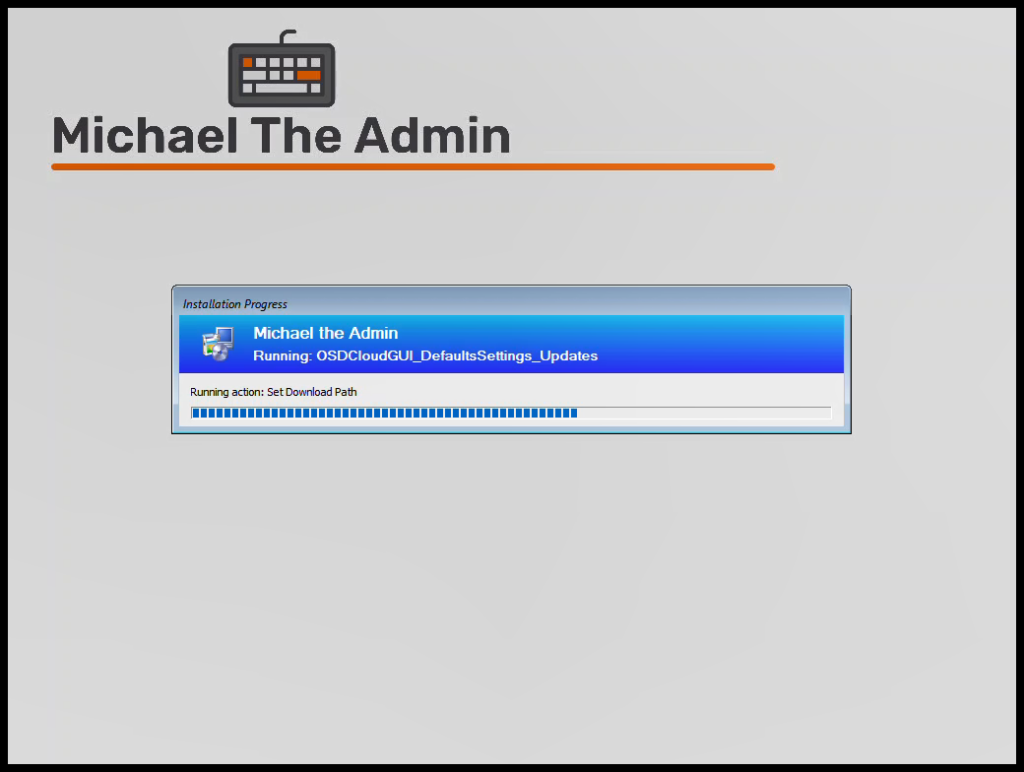
What it looks like in the Task Sequence:
Install Updates #
- This PowerShell script takes the TS Variable ‘OSDCloudDownloadPath’ and attempts to install all ‘files’ in that path
-DownloadPath '%OSDCloudDownloadPath%'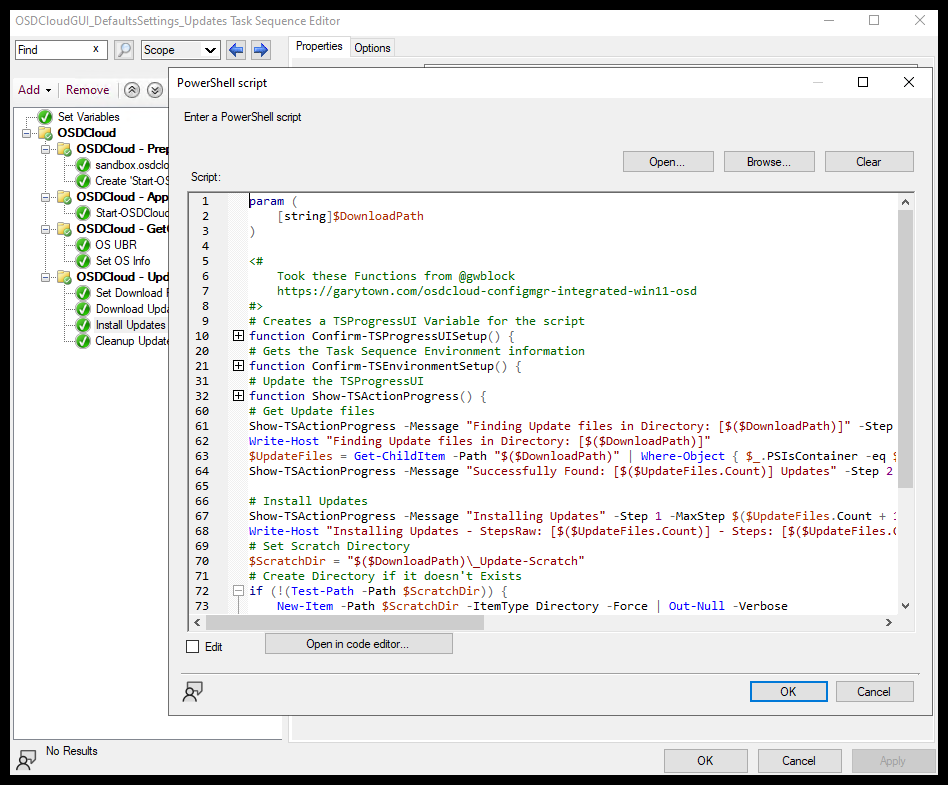
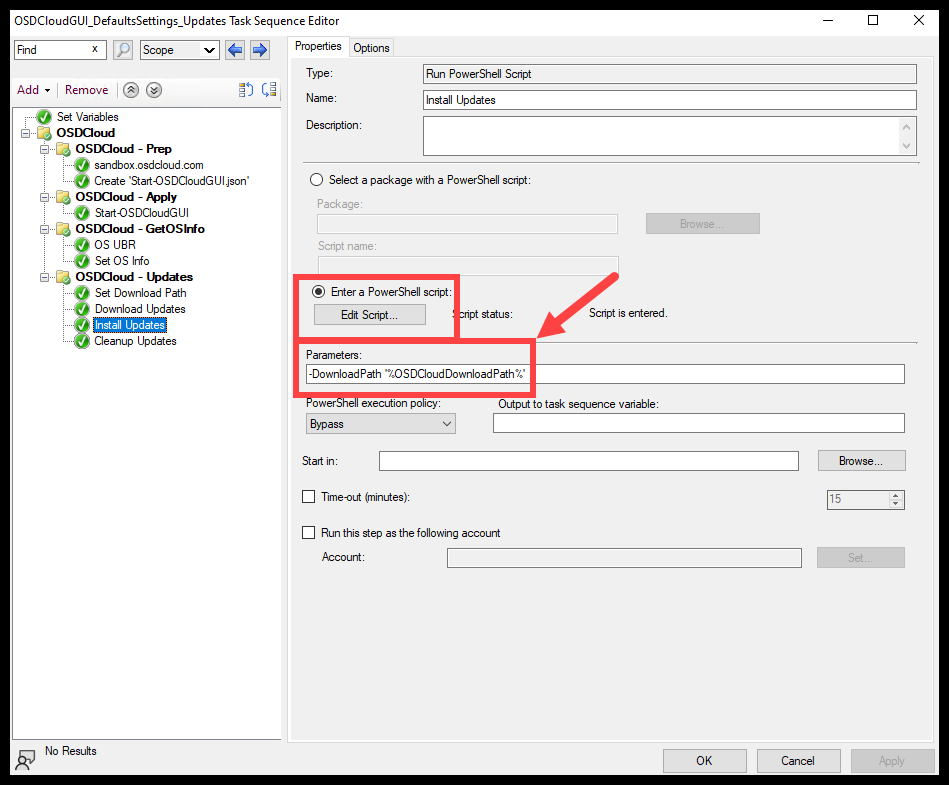
Below is the full script for this TS Step
param (
    [string]$DownloadPath
)

<#
    Took these Functions from @gwblock
    https://garytown.com/osdcloud-configmgr-integrated-win11-osd
#>
# Creates a TSProgressUI Variable for the script
function Confirm-TSProgressUISetup() {
    if ($null -eq $Script:TaskSequenceProgressUi) {
        try {
            $Script:TaskSequenceProgressUi = New-Object -ComObject Microsoft.SMS.TSProgressUI
        }
        catch {
            throw "Unable to connect to the Task Sequence Progress UI! Please verify you are in a running Task Sequence Environment. Please note: TSProgressUI cannot be loaded during a prestart command.`n`nErrorDetails:`n$_"
        }
    }
}
# Gets the Task Sequence Environment information
function Confirm-TSEnvironmentSetup() {
    if ($null -eq $Script:TaskSequenceEnvironment) {
        try {
            $Script:TaskSequenceEnvironment = New-Object -ComObject Microsoft.SMS.TSEnvironment
        }
        catch {
            throw "Unable to connect to the Task Sequence Environment! Please verify you are in a running Task Sequence Environment.`n`nErrorDetails:`n$_"
        }
    }
}
# Update the TSProgressUI
function Show-TSActionProgress() {

    param(
        [Parameter(Mandatory = $true)]
        [string] $Message,
        [Parameter(Mandatory = $true)]
        [long] $Step,
        [Parameter(Mandatory = $true)]
        [long] $MaxStep
    )
    # Create TsProgressUI Script:Variable
    Confirm-TSProgressUISetup
    # Gets TS Environment Info
    Confirm-TSEnvironmentSetup

    # Update the Progress UI
    $Script:TaskSequenceProgressUi.ShowActionProgress(`
            $Script:TaskSequenceEnvironment.Value("_SMSTSOrgName"), `
            $Script:TaskSequenceEnvironment.Value("_SMSTSPackageName"), `
            $Script:TaskSequenceEnvironment.Value("_SMSTSCustomProgressDialogMessage"), `
            $Script:TaskSequenceEnvironment.Value("_SMSTSCurrentActionName"), `
            [Convert]::ToUInt32($Script:TaskSequenceEnvironment.Value("_SMSTSNextInstructionPointer")), `
            [Convert]::ToUInt32($Script:TaskSequenceEnvironment.Value("_SMSTSInstructionTableSize")), `
            $Message, `
            $Step, `
            $MaxStep)
}

# Get Update files
Show-TSActionProgress -Message "Finding Update files in Directory: [$($DownloadPath)]" -Step 1 -MaxStep 2
Write-Host "Finding Update files in Directory: [$($DownloadPath)]"
$UpdateFiles = Get-ChildItem -Path "$($DownloadPath)" | Where-Object { $_.PSIsContainer -eq $false }
Show-TSActionProgress -Message "Successfully Found: [$($UpdateFiles.Count)] Updates" -Step 2 -MaxStep 2

# Install Updates
Show-TSActionProgress -Message "Installing Updates" -Step 1 -MaxStep $($UpdateFiles.Count + 1)
# Set Scratch Directory
$ScratchDir = "$($DownloadPath)\_Update-Scratch"
# Create Directory if it doesn't Exists
if (!(Test-Path -Path $ScratchDir)) {
    New-Item -Path $ScratchDir -ItemType Directory -Force | Out-Null -Verbose
}
# Install Updates
[long]$StepCount = 0
Show-TSActionProgress -Message "Installing Updates" -Step $StepCount -MaxStep $($Updates.Count + 1)
foreach ($Update in $UpdateFiles) {
    $StepCount++
    Write-Host "Installing Update: [$($Update.FullName)]"
    Show-TSActionProgress -Message "Installing Update: [$($Update.Name)]" -Step $StepCount -MaxStep ($UpdateFiles.Count + 1)
    Add-WindowsPackage -Path "C:\" -PackagePath "$($Update.FullName)" -NoRestart -ScratchDirectory "$($ScratchDir)" -Verbose
    Start-Sleep -Seconds 5
}
The three main parts of the script are:
- Get Downloaded Update Files
- Gets all ‘files’ in the root of the ‘DownloadPath’
# Get Update files
Show-TSActionProgress -Message "Finding Update files in Directory: [$($DownloadPath)]" -Step 1 -MaxStep 2
Write-Host "Finding Update files in Directory: [$($DownloadPath)]"
$UpdateFiles = Get-ChildItem -Path "$($DownloadPath)" | Where-Object { $_.PSIsContainer -eq $false }
Show-TSActionProgress -Message "Successfully Found: [$($UpdateFiles.Count)] Updates" -Step 2 -MaxStep 2- Create Scratch Directory
- Will create directory if it does not exists
- Add-WindowsPackage (DISM) | Microsoft Learn
# Set Scratch Directory
$ScratchDir = "$($DownloadPath)\_Update-Scratch"
# Create Directory if it doesn't Exists
if (!(Test-Path -Path $ScratchDir)) {
    New-Item -Path $ScratchDir -ItemType Directory -Force | Out-Null -Verbose
}- Install Updates
- Loop through all the Updates Files found in part 1
- Uses
Add-WindowsPackageto apply Update
# Install Updates
[long]$StepCount = 0
Show-TSActionProgress -Message "Installing Updates" -Step $StepCount -MaxStep $($Updates.Count + 1)
foreach ($Update in $UpdateFiles) {
    $StepCount++
    Write-Host "Installing Update: [$($Update.FullName)]"
    Show-TSActionProgress -Message "Installing Update: [$($Update.Name)]" -Step $StepCount -MaxStep ($UpdateFiles.Count + 1)
    Add-WindowsPackage -Path "C:\" -PackagePath "$($Update.FullName)" -NoRestart -ScratchDirectory "$($ScratchDir)" -Verbose
    Start-Sleep -Seconds 5
}
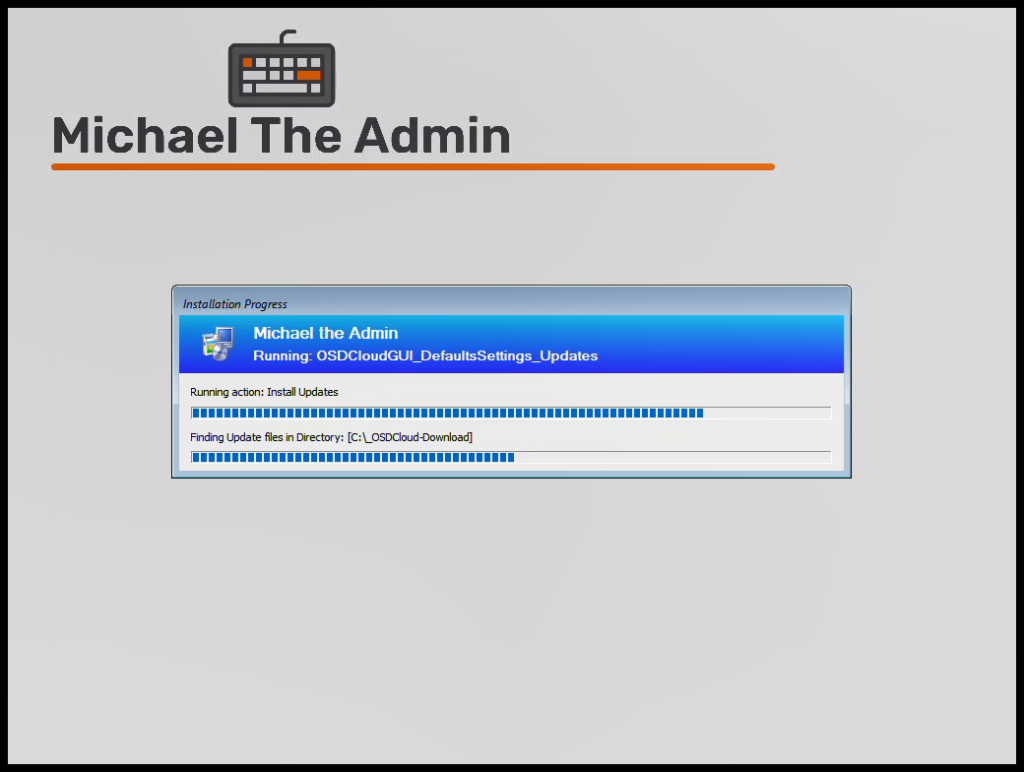
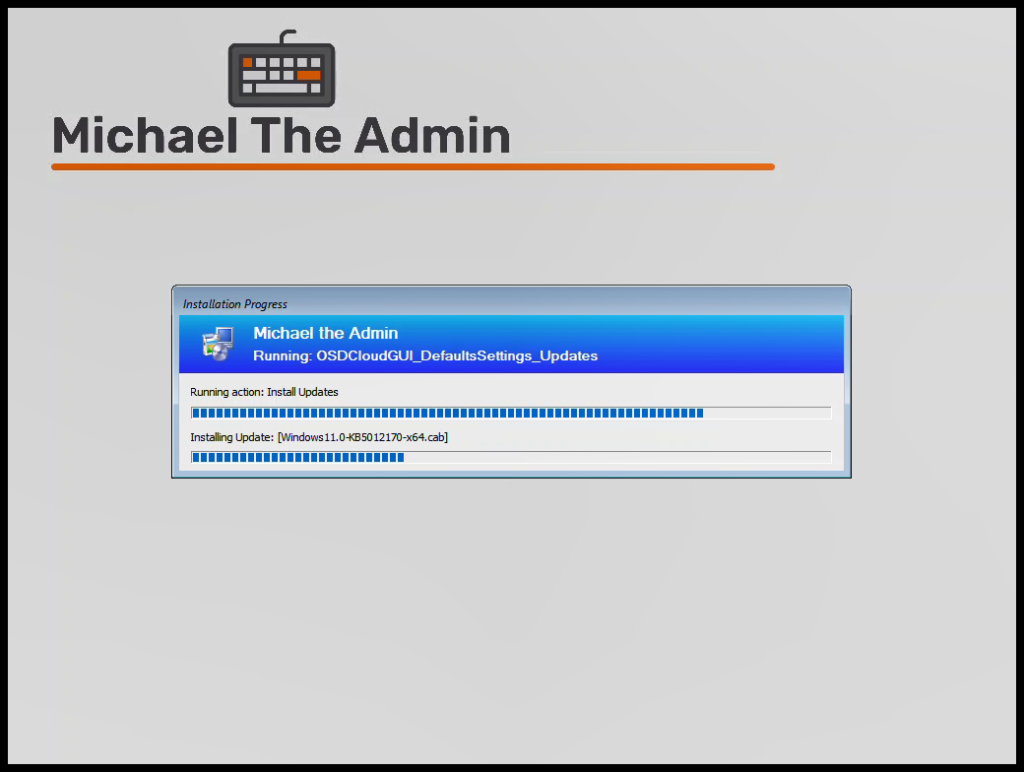
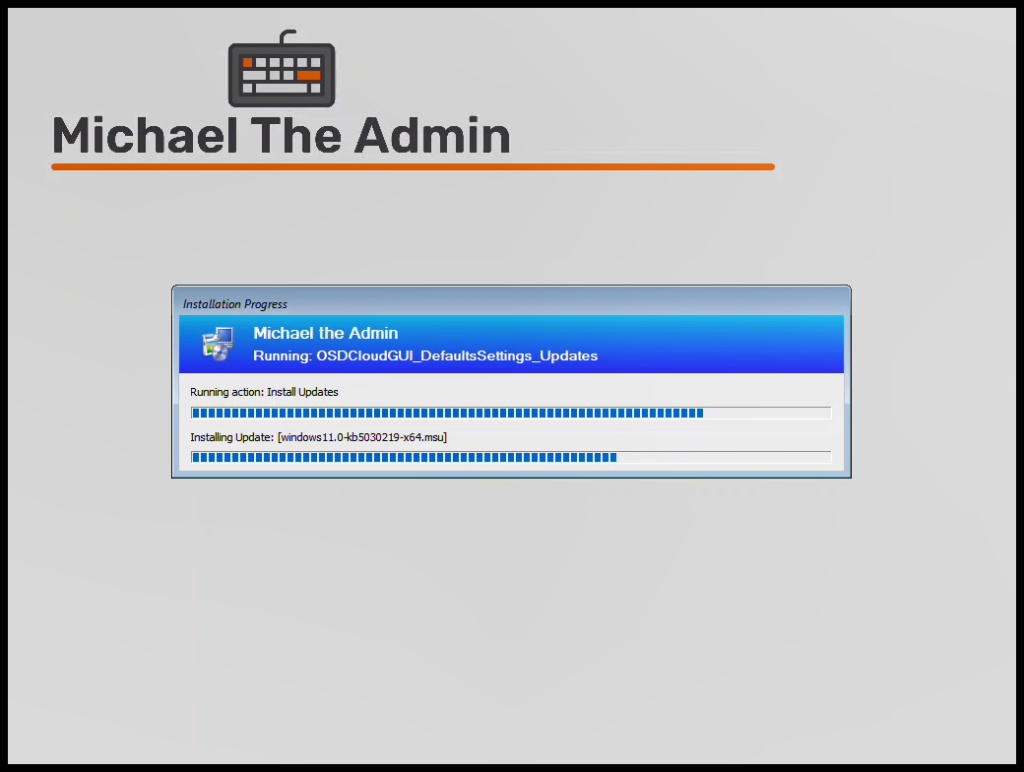
What it looks like in the Task Sequence:
Cleanup #
- This PowerShell script takes the TS Variable ‘OSDCloudDownloadPath’ and deletes the whole directory
-DownloadPath '%OSDCloudDownloadPath%'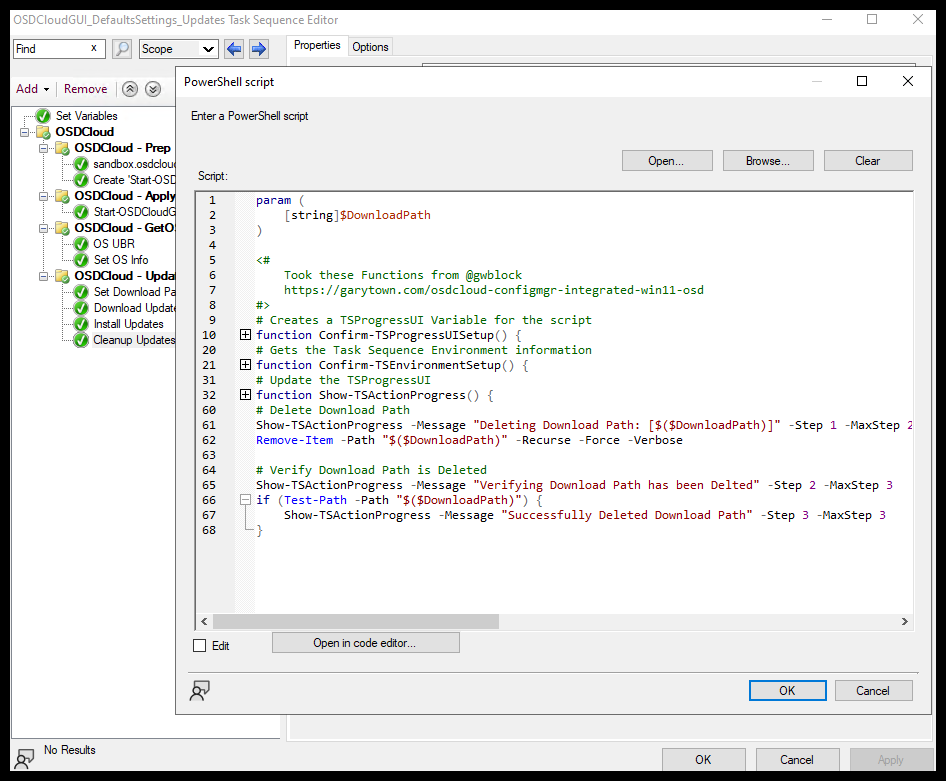
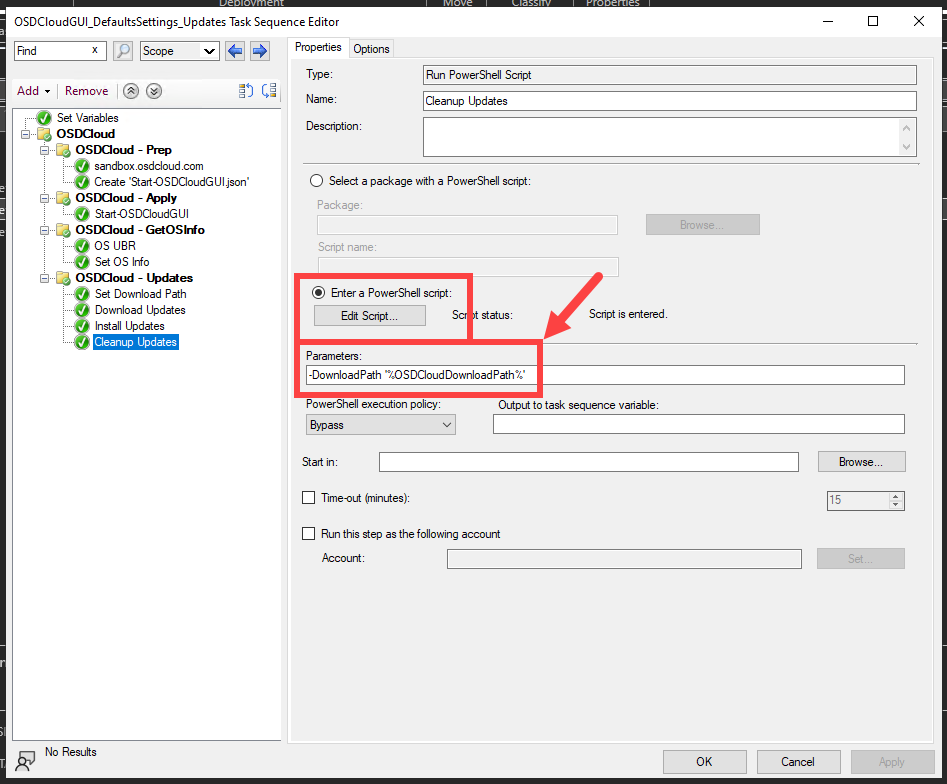
Below is the full script for this TS Step
param (
    [string]$DownloadPath
)

<#
    Took these Functions from @gwblock
    https://garytown.com/osdcloud-configmgr-integrated-win11-osd
#>
# Creates a TSProgressUI Variable for the script
function Confirm-TSProgressUISetup() {
    if ($null -eq $Script:TaskSequenceProgressUi) {
        try {
            $Script:TaskSequenceProgressUi = New-Object -ComObject Microsoft.SMS.TSProgressUI
        }
        catch {
            throw "Unable to connect to the Task Sequence Progress UI! Please verify you are in a running Task Sequence Environment. Please note: TSProgressUI cannot be loaded during a prestart command.`n`nErrorDetails:`n$_"
        }
    }
}
# Gets the Task Sequence Environment information
function Confirm-TSEnvironmentSetup() {
    if ($null -eq $Script:TaskSequenceEnvironment) {
        try {
            $Script:TaskSequenceEnvironment = New-Object -ComObject Microsoft.SMS.TSEnvironment
        }
        catch {
            throw "Unable to connect to the Task Sequence Environment! Please verify you are in a running Task Sequence Environment.`n`nErrorDetails:`n$_"
        }
    }
}
# Update the TSProgressUI
function Show-TSActionProgress() {

    param(
        [Parameter(Mandatory = $true)]
        [string] $Message,
        [Parameter(Mandatory = $true)]
        [long] $Step,
        [Parameter(Mandatory = $true)]
        [long] $MaxStep
    )
    # Create TsProgressUI Script:Variable
    Confirm-TSProgressUISetup
    # Gets TS Environment Info
    Confirm-TSEnvironmentSetup

    # Update the Progress UI
    $Script:TaskSequenceProgressUi.ShowActionProgress(`
            $Script:TaskSequenceEnvironment.Value("_SMSTSOrgName"), `
            $Script:TaskSequenceEnvironment.Value("_SMSTSPackageName"), `
            $Script:TaskSequenceEnvironment.Value("_SMSTSCustomProgressDialogMessage"), `
            $Script:TaskSequenceEnvironment.Value("_SMSTSCurrentActionName"), `
            [Convert]::ToUInt32($Script:TaskSequenceEnvironment.Value("_SMSTSNextInstructionPointer")), `
            [Convert]::ToUInt32($Script:TaskSequenceEnvironment.Value("_SMSTSInstructionTableSize")), `
            $Message, `
            $Step, `
            $MaxStep)
}

# Delete Download Path
Show-TSActionProgress -Message "Deleting Download Path: [$($DownloadPath)]" -Step 1 -MaxStep 2
Remove-Item -Path "$($DownloadPath)" -Recurse -Force -Verbose

# Verify Download Path is Deleted
Show-TSActionProgress -Message "Verifying Download Path has been Delted" -Step 2 -MaxStep 3
if (Test-Path -Path "$($DownloadPath)") {
    Show-TSActionProgress -Message "Successfully Deleted Download Path" -Step 3 -MaxStep 3
}
The only main part of the script is:
- Delete Download Path
- Delete the whole DownloadPath directory
# Delete Download Path
Show-TSActionProgress -Message "Deleting Download Path: [$($DownloadPath)]" -Step 1 -MaxStep 2
Remove-Item -Path "$($DownloadPath)" -Recurse -Force -Verbose
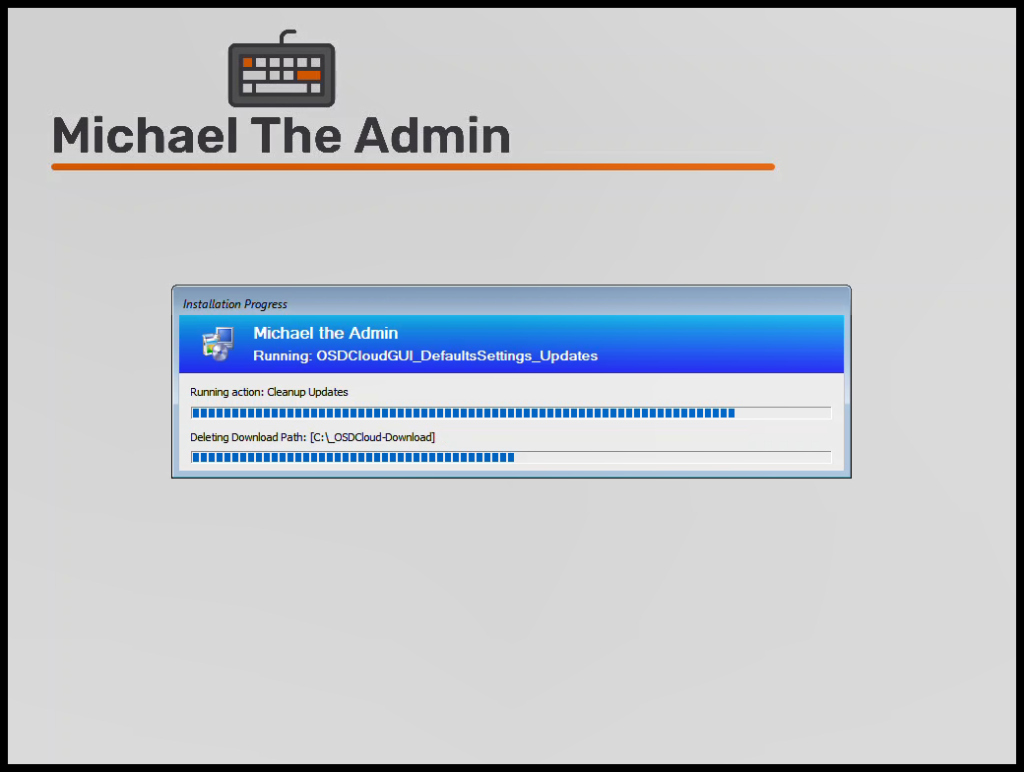
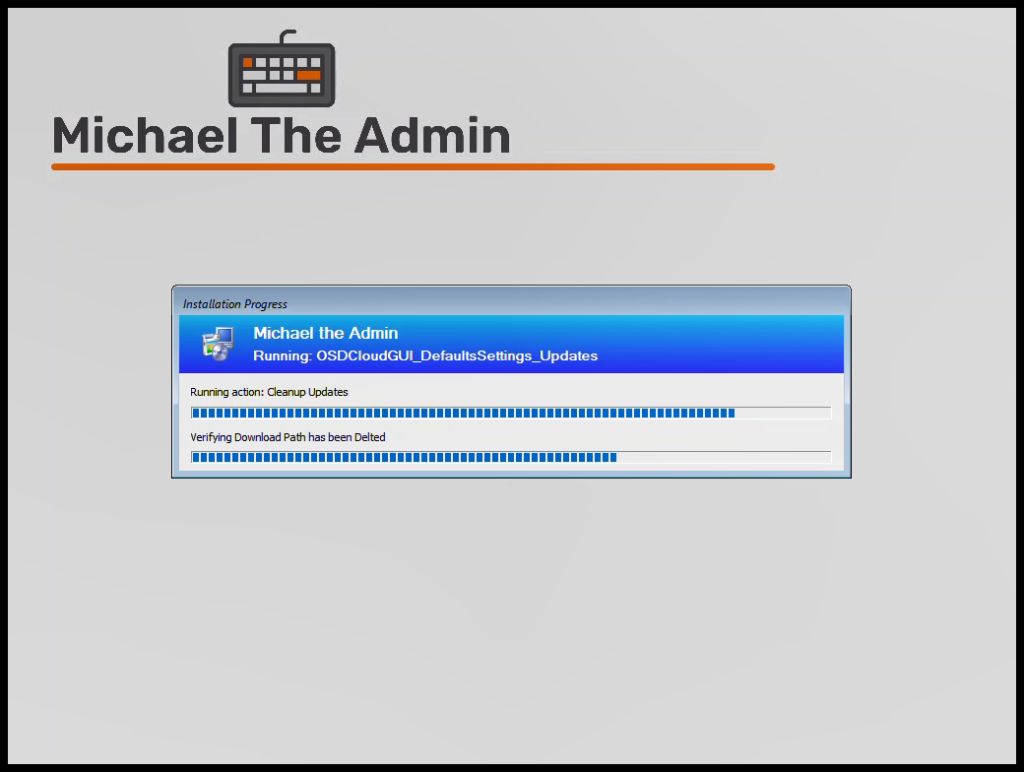
What it looks like in the Task Sequence:
Success! #
Now your OSDCloud installed OS will be update to date with the latest Cumulative Update at first boot.
I’m not sure if this is the best way to do it, but the goal was to make it dynamic to whatever OS was installed using OSDCloud. Hopefully this helps anyone looking to do something similar.
Download the Full Task Sequence
Video of the full install below: