
As many already do, Configuration Manager is used to apply your Windows Operating systems and join your workstations to Active Directory.
The modern management way would be to just use the pre-installed OS on the workstation with Windows Autopilot, and if needed, do a reset of the OS from Intune to start over.
But every now and then you may need to do a Bare Metal install, and if you still have a ConfigMgr infrastructure in-place, then lets utilize it. For this scenario, all I want to do is load Windows. So my thought process is to hopefully maintain this Task Sequence as little as possible. A good way to do this is with OSDCloud, https://osdcloud.com
OSDCloud is a solution for deploying Windows 10/11 x64 over the internet using the OSD PowerShell Module. This works by booting to WinPE where the OSDisk is wiped and partitioned. Once this is complete, the Windows Operating System is downloaded from Microsoft Update (using CuRL), before finally being staged (expanded) on the OSDisk. Driver Packs from Dell, Lenovo, and HP are downloaded directly from each of the manufacturers where they are installed in WinPE or in the Windows Specialize Phase. For computers that do not have a Driver Pack, hardware drivers are downloaded from Microsoft Update, so this should work on just about any computer model out there.
David Segura
Additional Information #
Where I learned and stole most of this information from.
-
OSDCloud: https://www.osdcloud.com/
-
Recast Software - OSDCloud: https://www.recastsoftware.com/resources/configmgr-docs/configmgr-community-tools/osd-cloud/
-
GARYTOWN: https://garytown.com/
What are we going to do? #
-
Create and Deploy a Task Sequence to Run OSDCloudGUI
-
Run through the Task Sequence
This is a very simple task sequence that will just Apply the Operating System. No Domain Joining, Customizations, etc. We’ll do some of that stuff another day.
Requirements #
-
Your boot image will need to have Powershell enabled
-
Internet access during OSD
Create our Task Sequence #
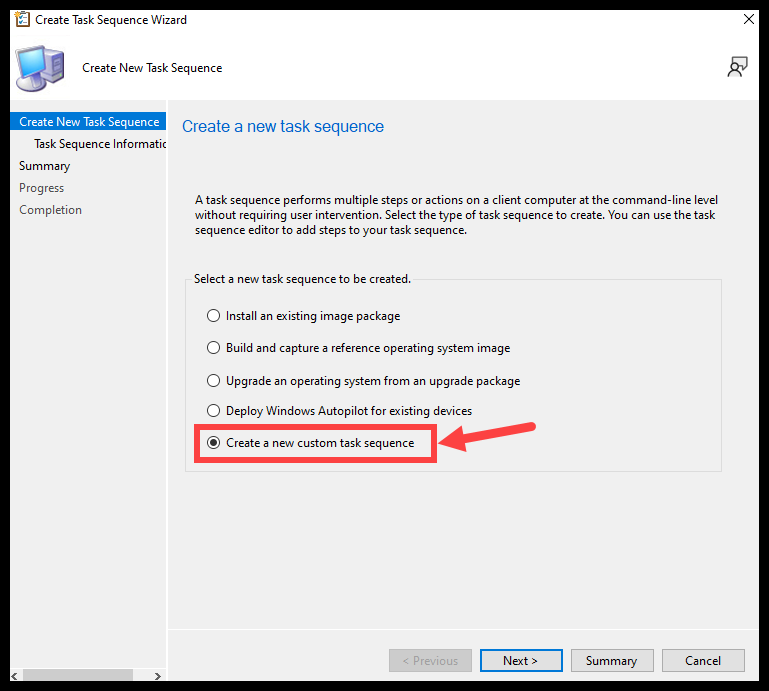
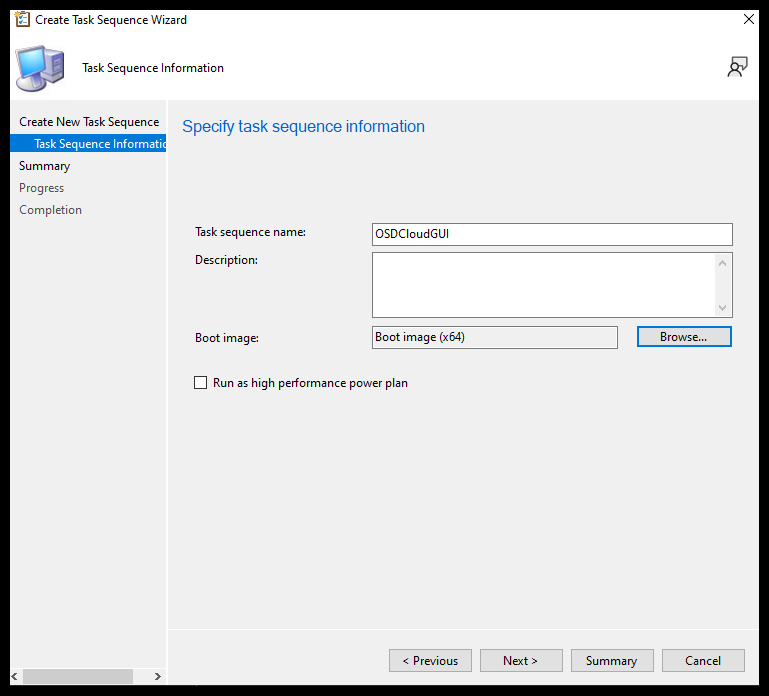
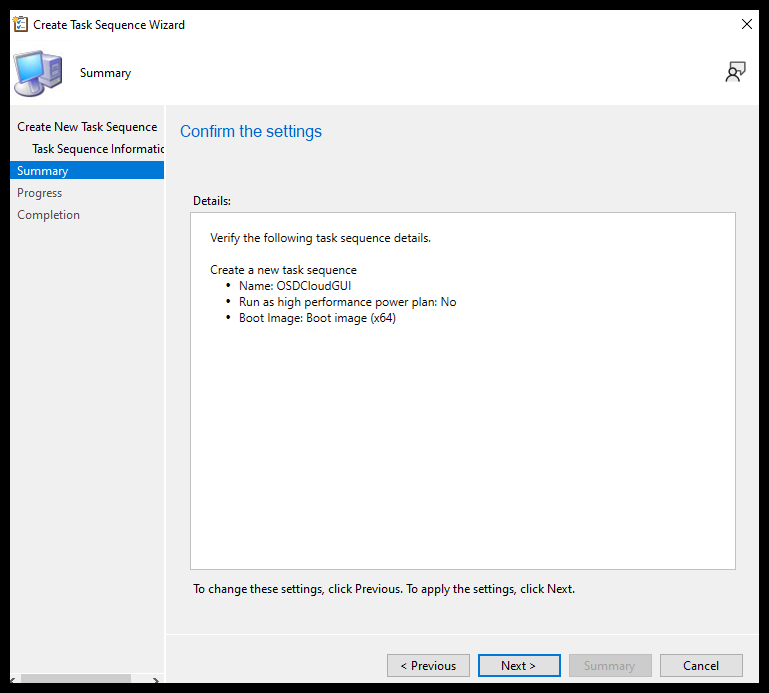
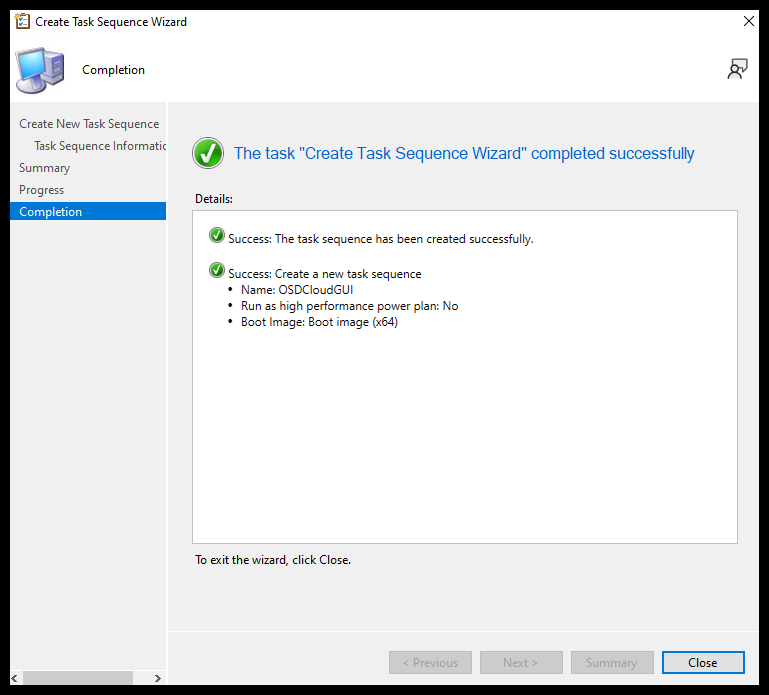
Lets start by creating a ‘Custom task sequence’
Download the Task Sequence
Add some Steps #
-
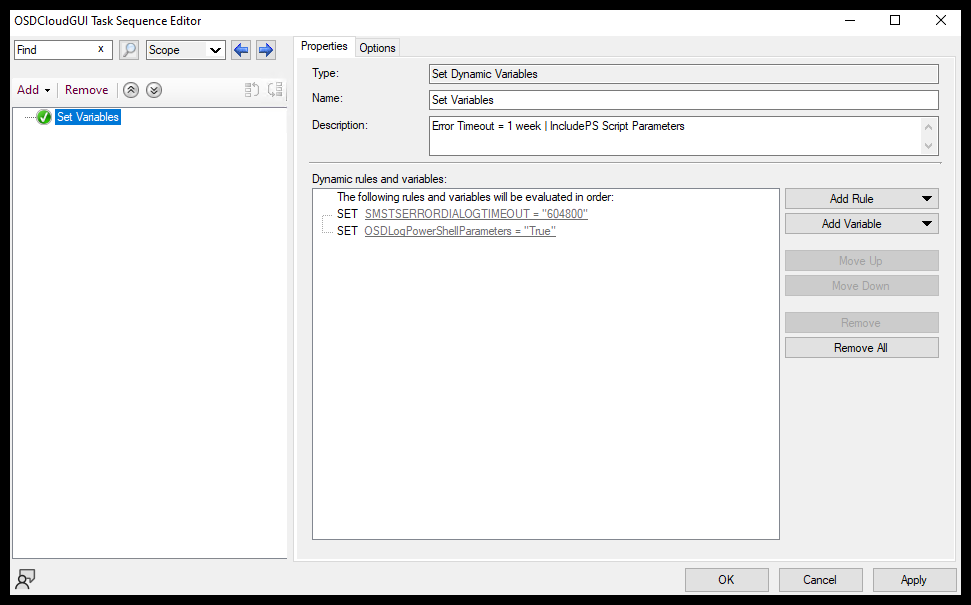
The first step is just setting some variables, you may not need these
-
SMSTSERRORDIALOGTIMEOUT = Amount of time the Error dialog box appears for before dismissing
-
OSDLogPowerShellParameters = Determines if Powershell Parameters show up in the smsts.log. (You might not want this in production. This is my Lab so I have it enabled.)
-
- The second step sets up the WinPE environment so we can use OSDCloud.
-
More Information here: https://www.osdcloud.com/sandbox/sandbox
-
TLDR: ‘sandbox.osdcloud.com’ redirects to a script hosted on GitHub. We are executing this script via Powershell.
-
Invoke-RestMethod pulls the script down
-
Invoke-Expression runs the script
-
-
powershell.exe -executionpolicy bypass -command "Invoke-Expression (Invoke-RestMethod 'sandbox.osdcloud.com')"- You can shorten the command to the below if you need to save some typing
powershell.exe -executionpolicy bypass -command "iex (irm 'sandbox.osdcloud.com')"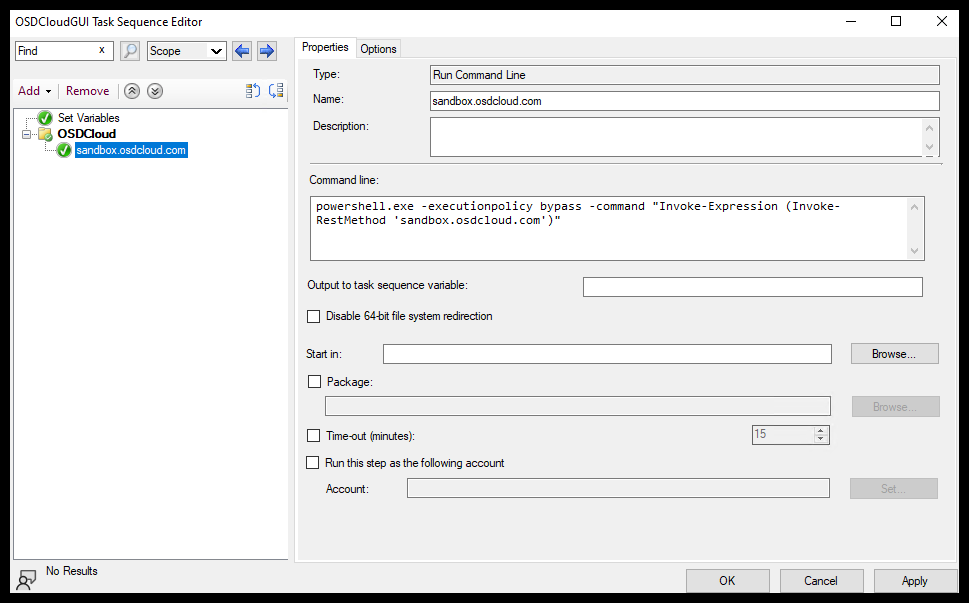
- And Finally, we start up OSDCloudGUI
- This command will close the Task Sequence UI and start OSDCloudGUI
cmd.exe /c start /wait %SYSTEMROOT%\System32\WindowsPowershell\v1.0\powershell.exe -ep bypass -command (new-object -ComObject Microsoft.SMS.TsProgressUI).CloseProgressDialog() ; Start-OSDCloudGUI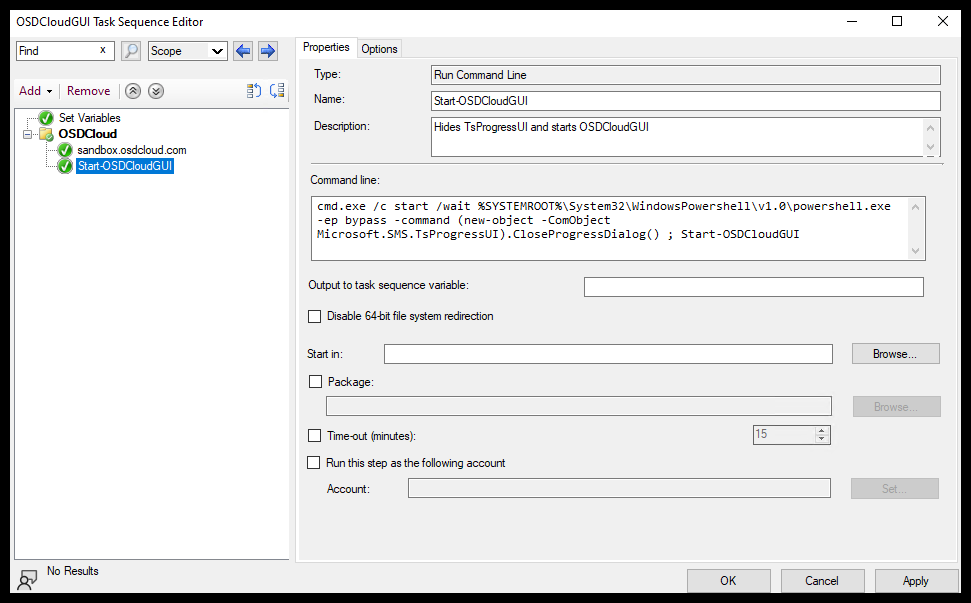
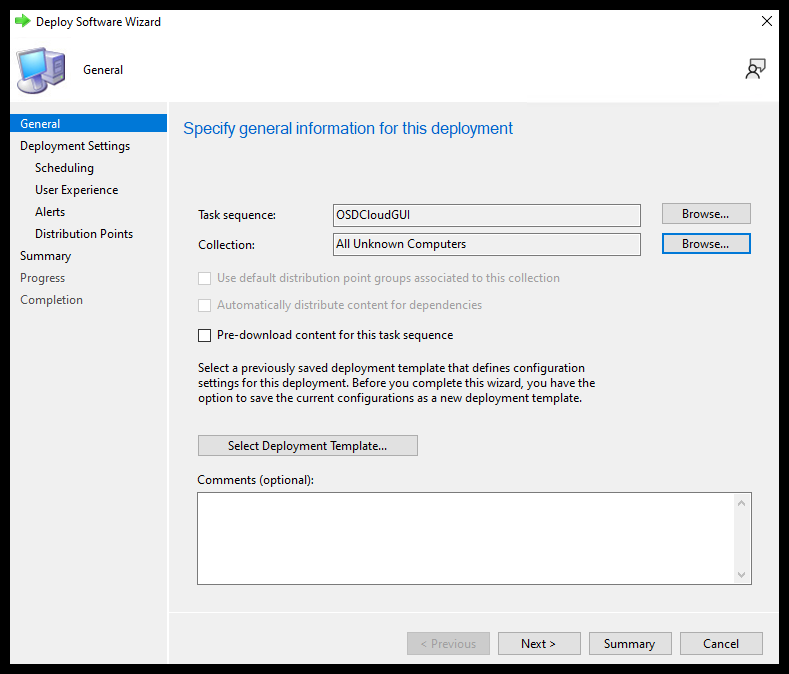
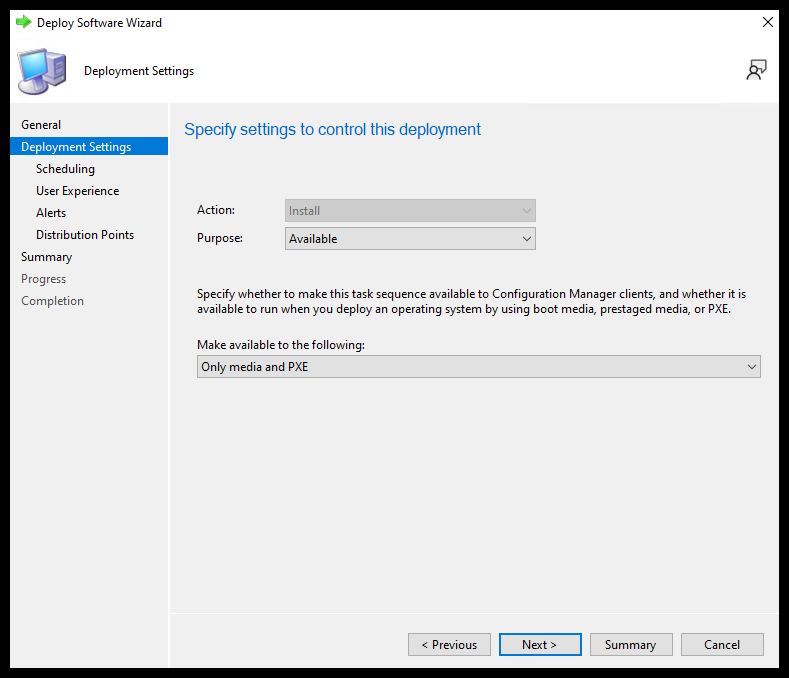
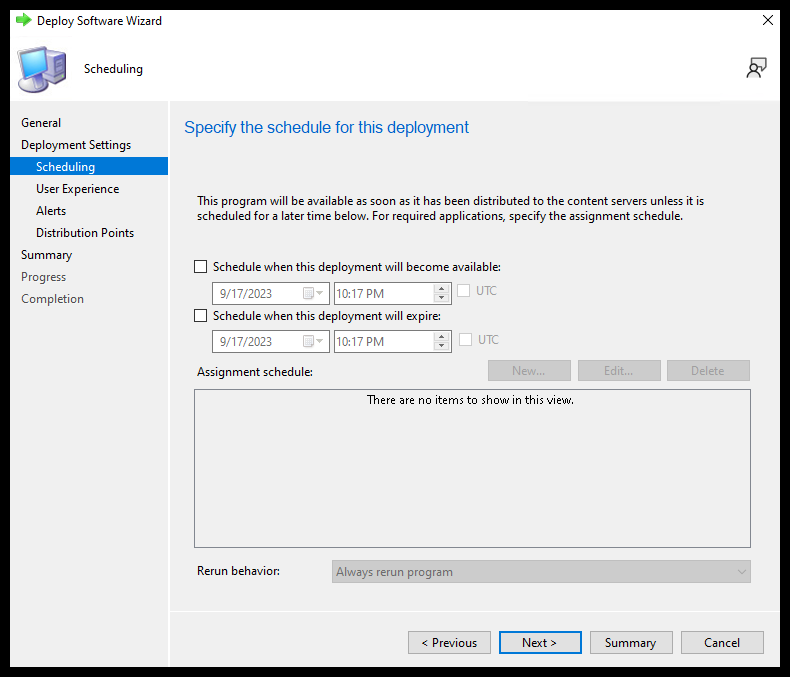
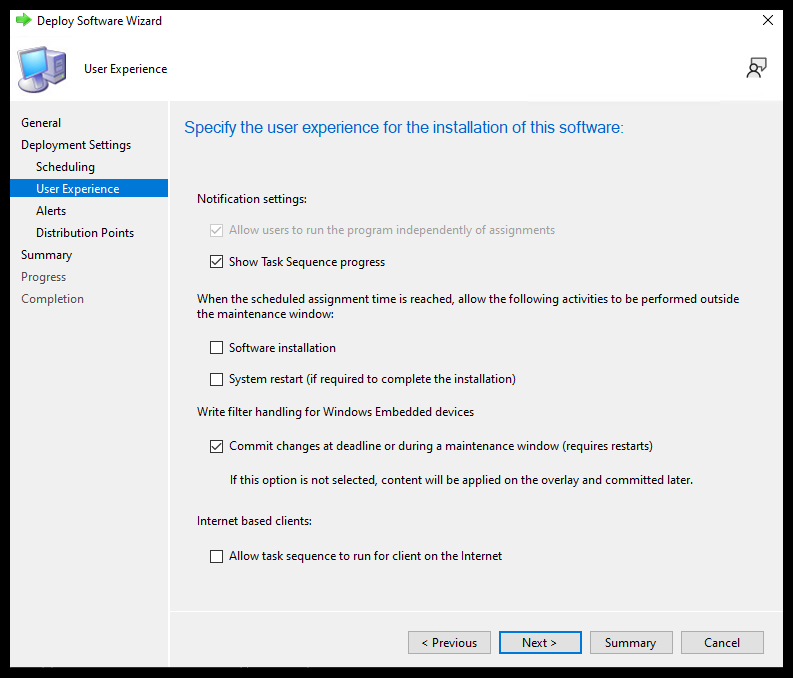
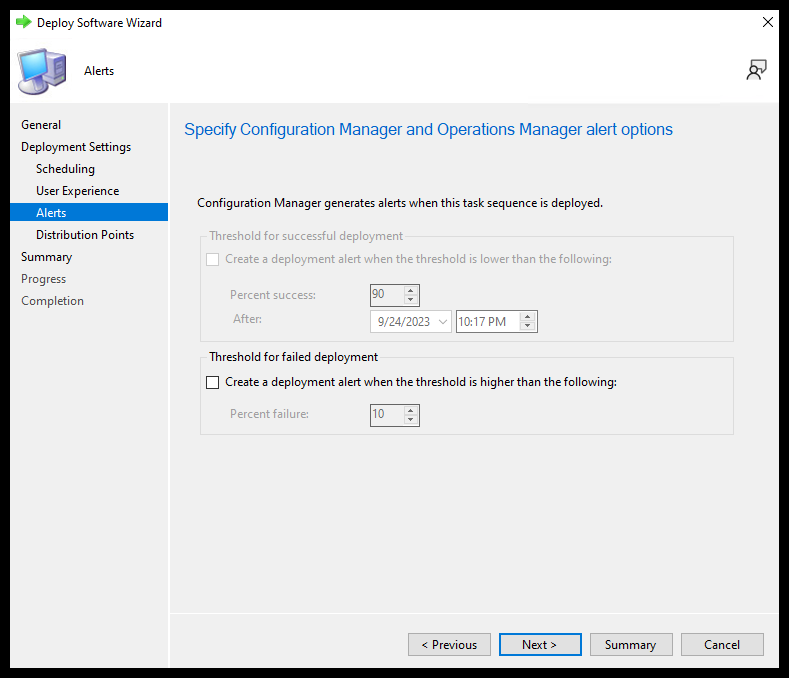
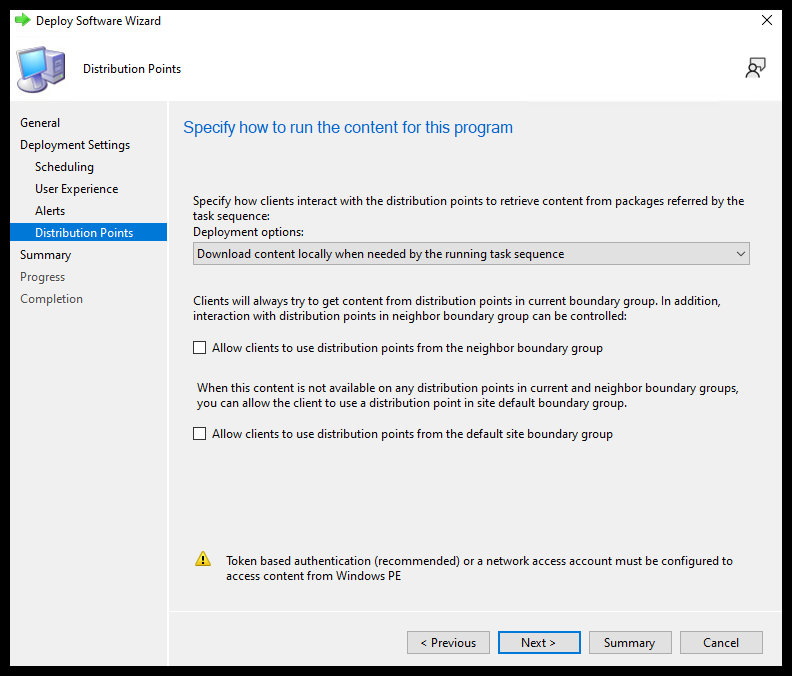
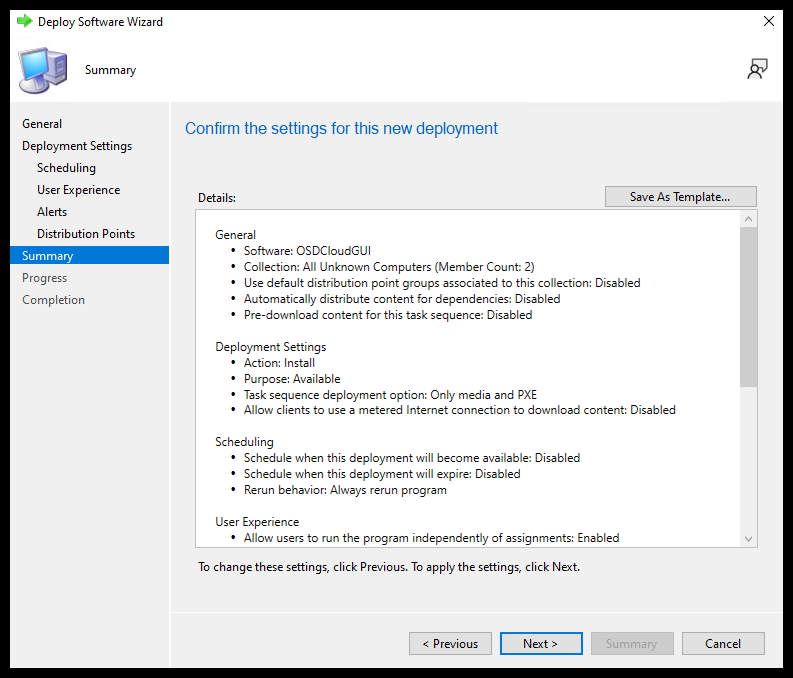
- And That’s it! You can now Deploy the Task Sequence.
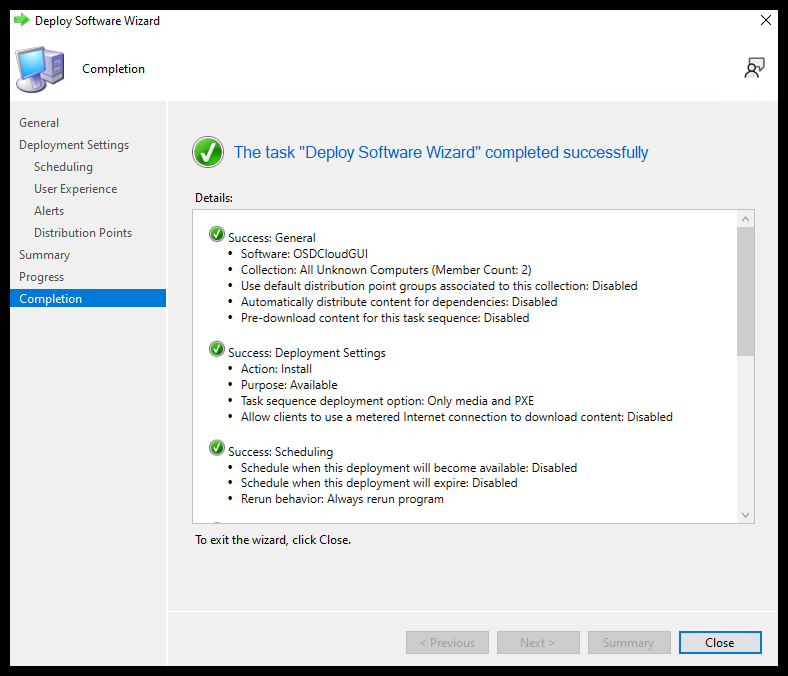
Run the Task Sequence #
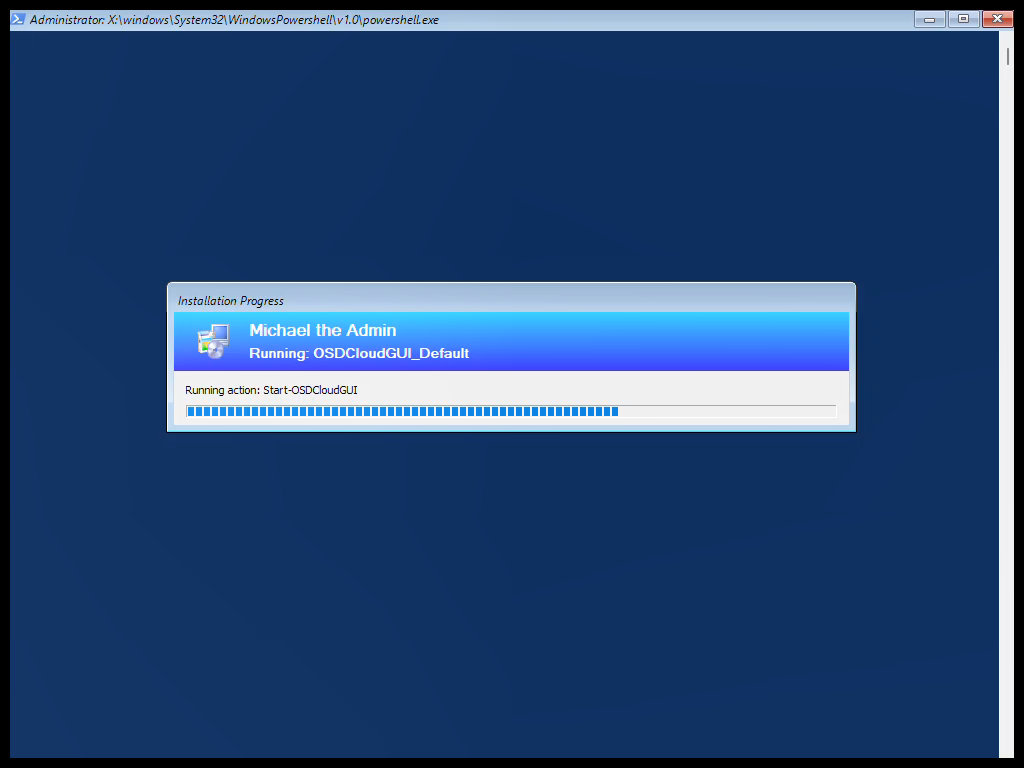
Start the task sequence. It will run the ‘sandbox.osdcloud.com’ script to Install and setup OSDCloud
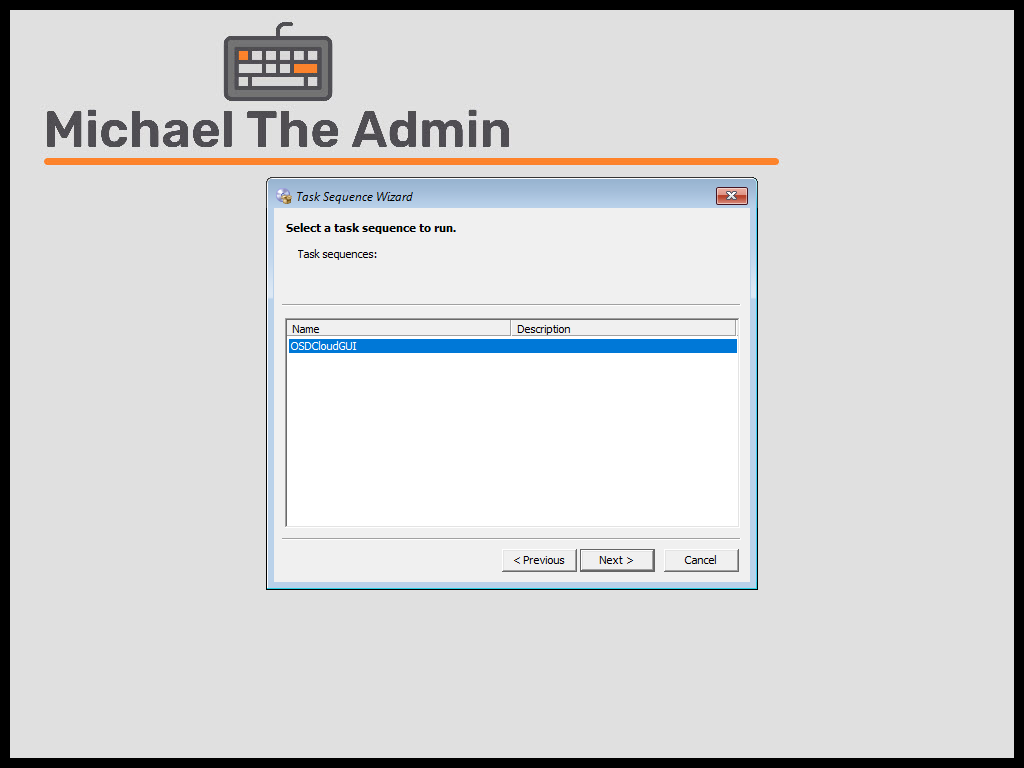
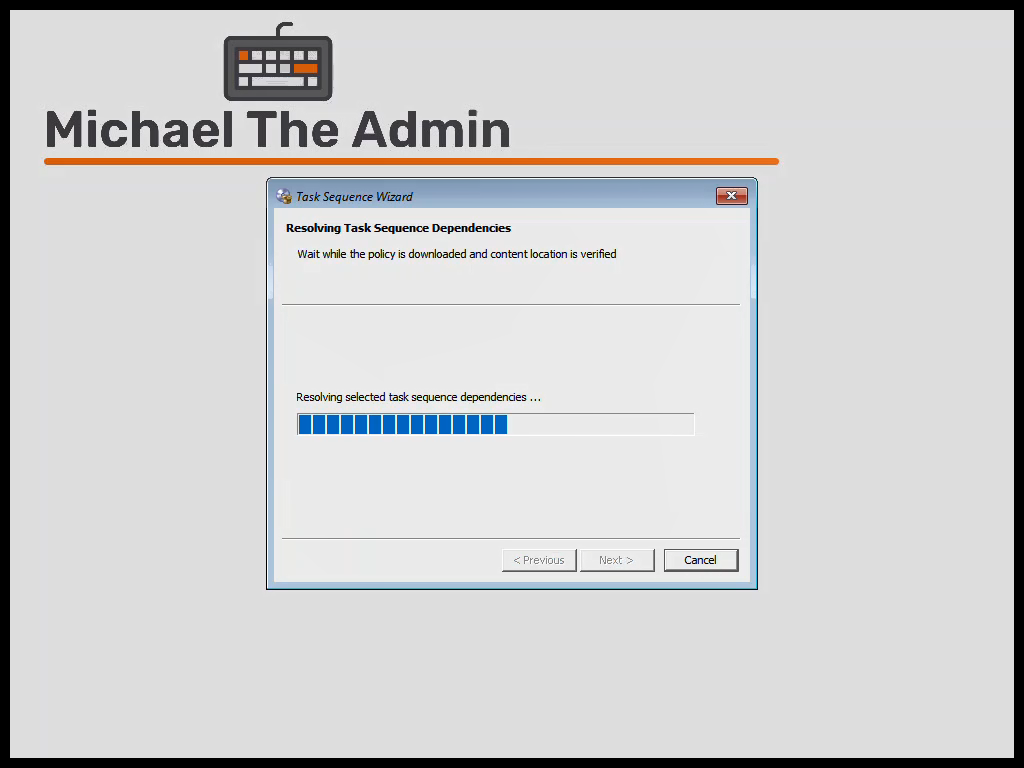
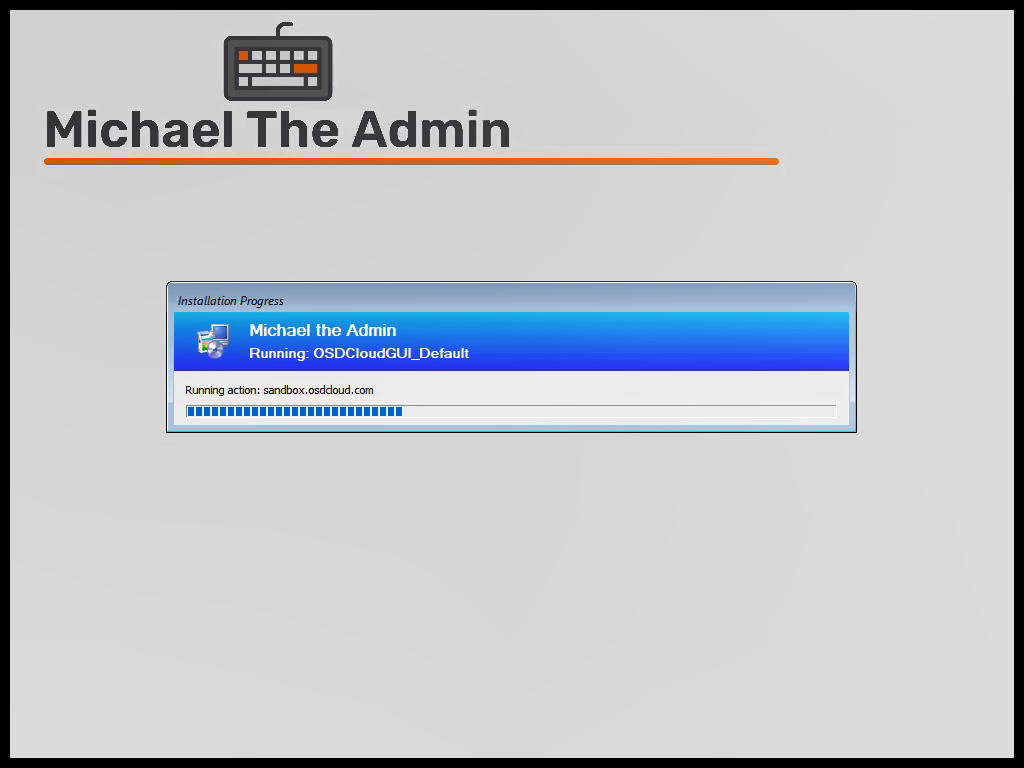
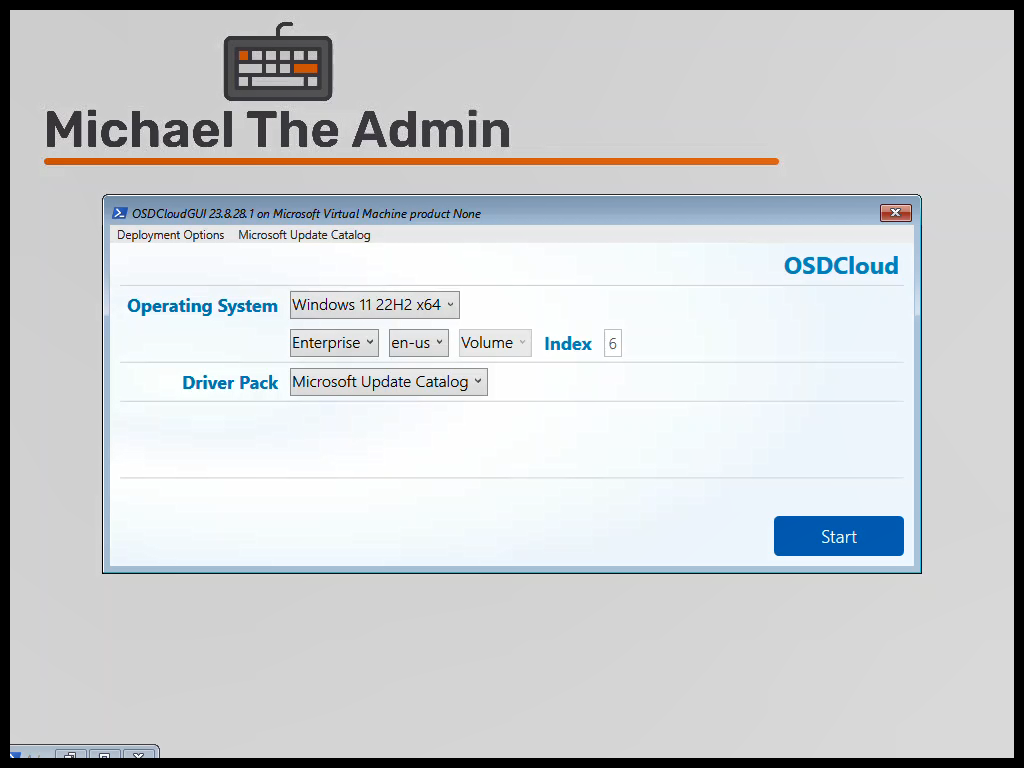
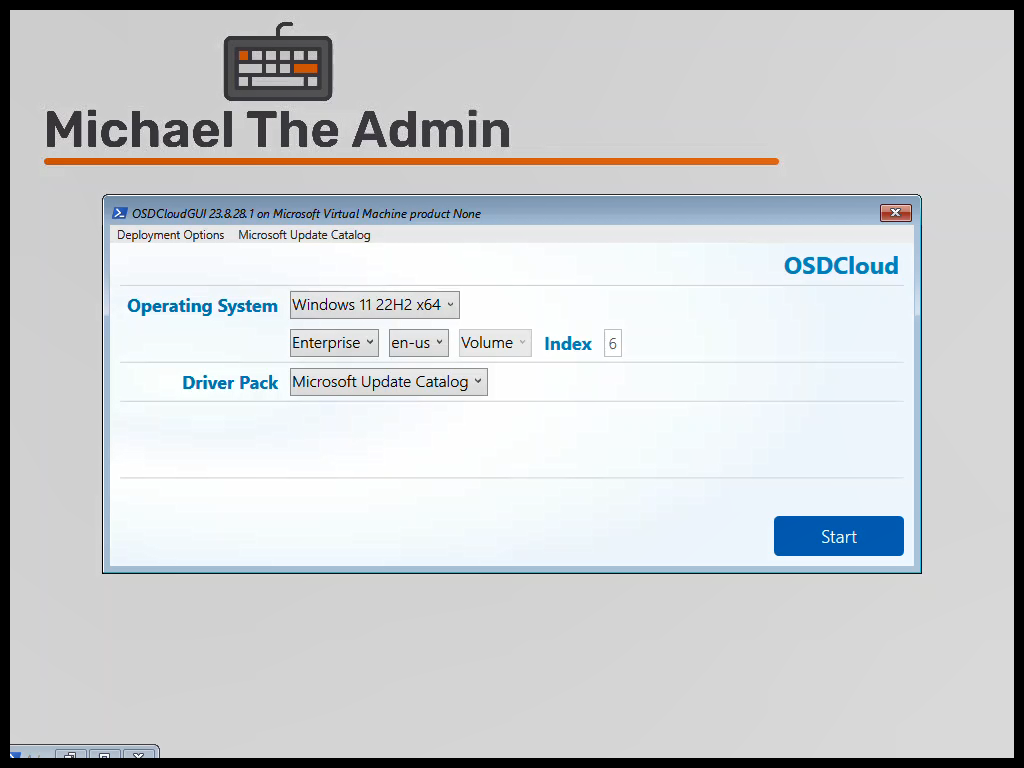
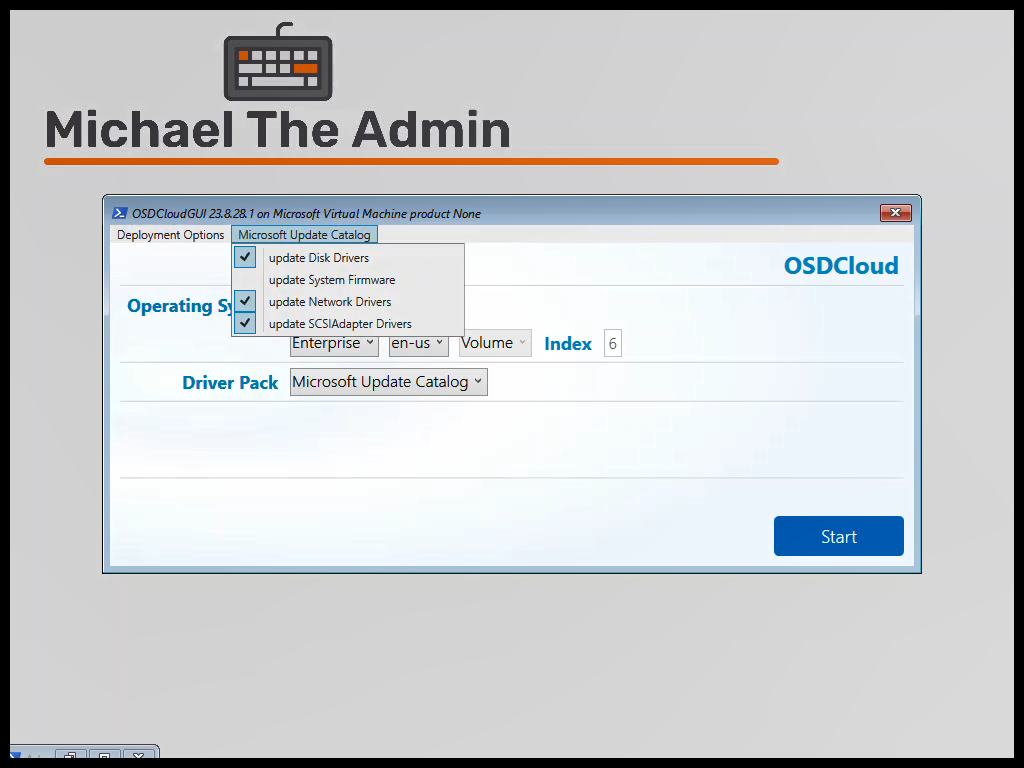
This is the OSDCloudGUI. You see that there are many options available for version of Windows as well as editions. You also have the options to install various disk/network/system firmware and drivers via MS Updates.
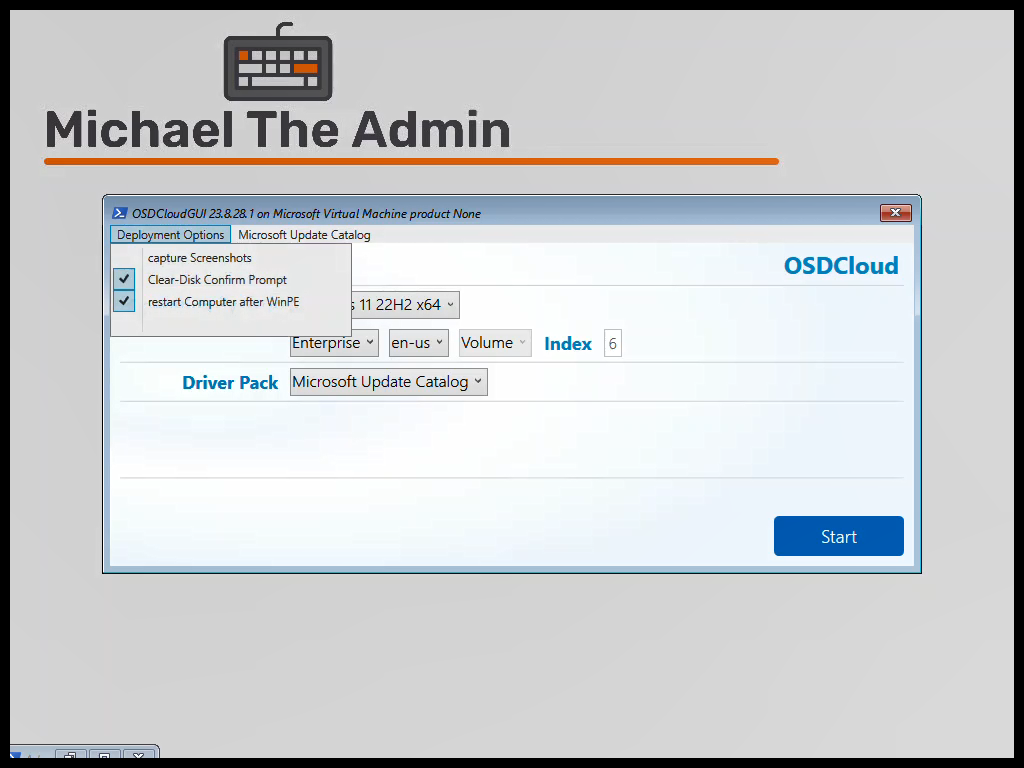
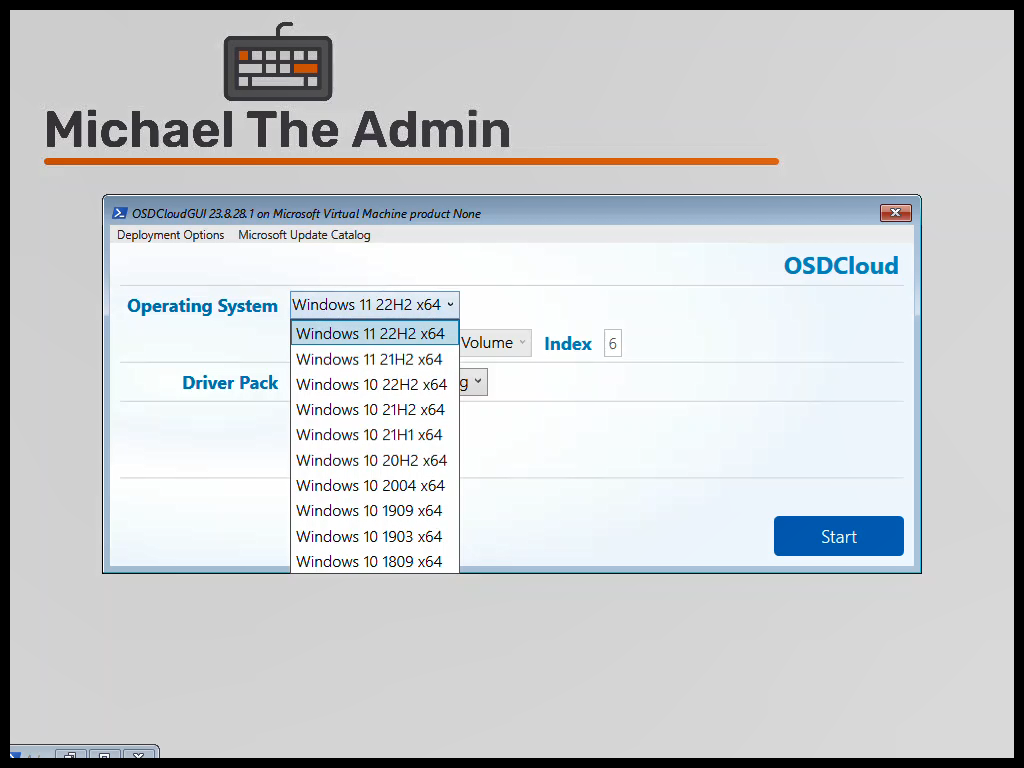
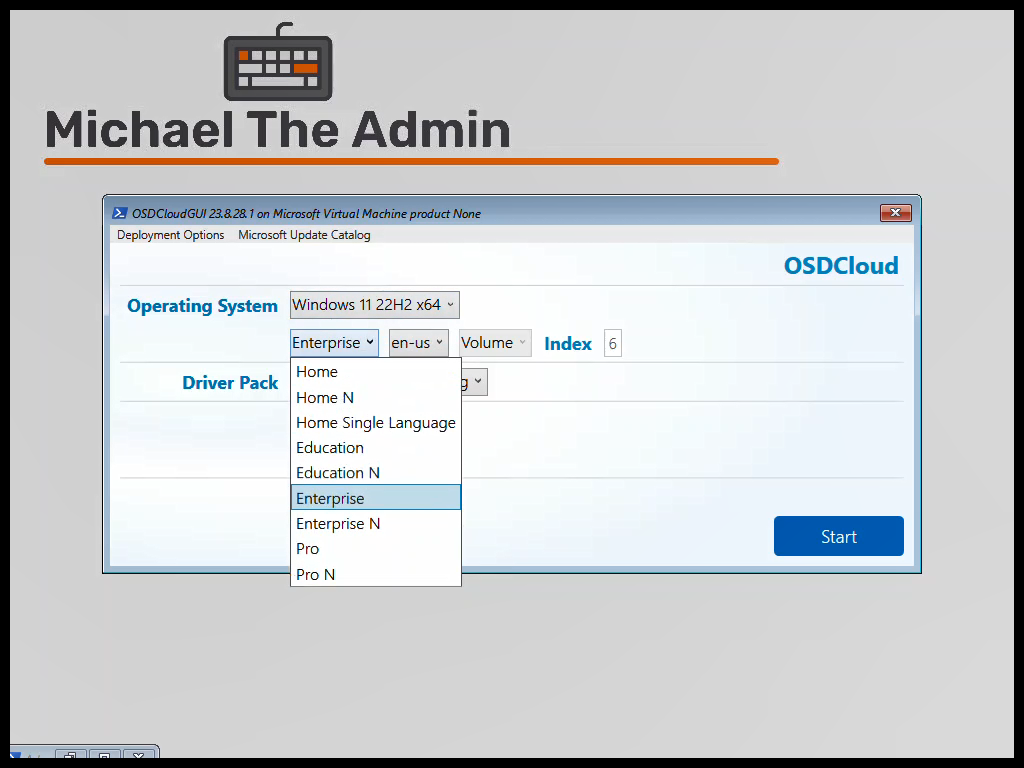
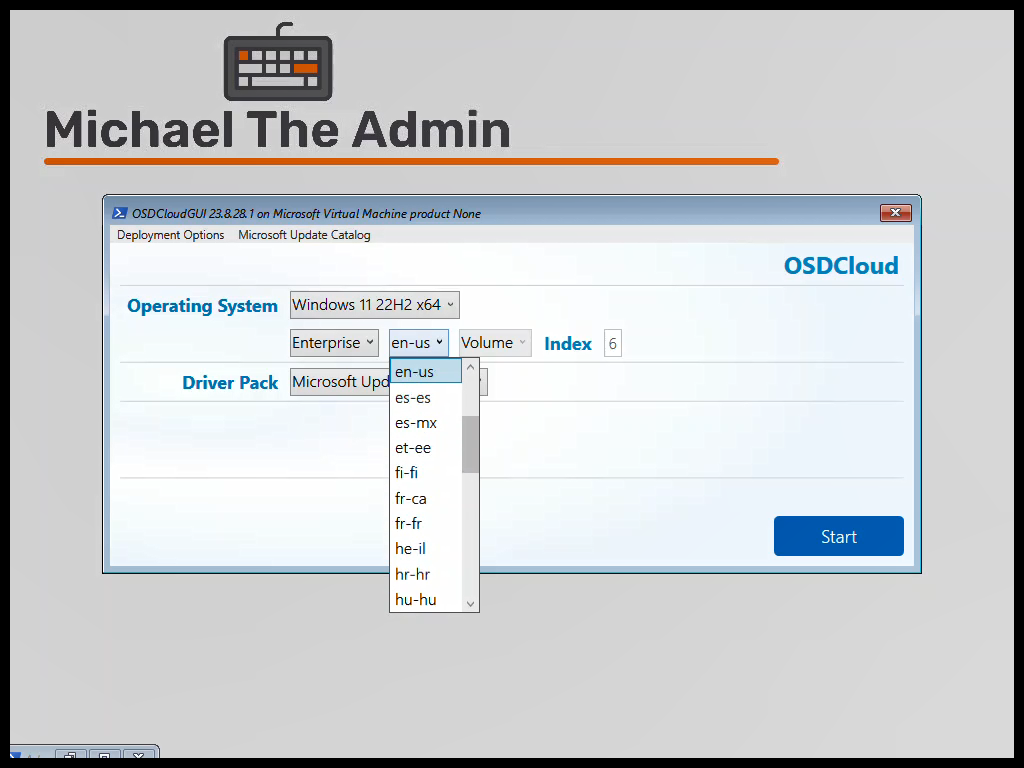
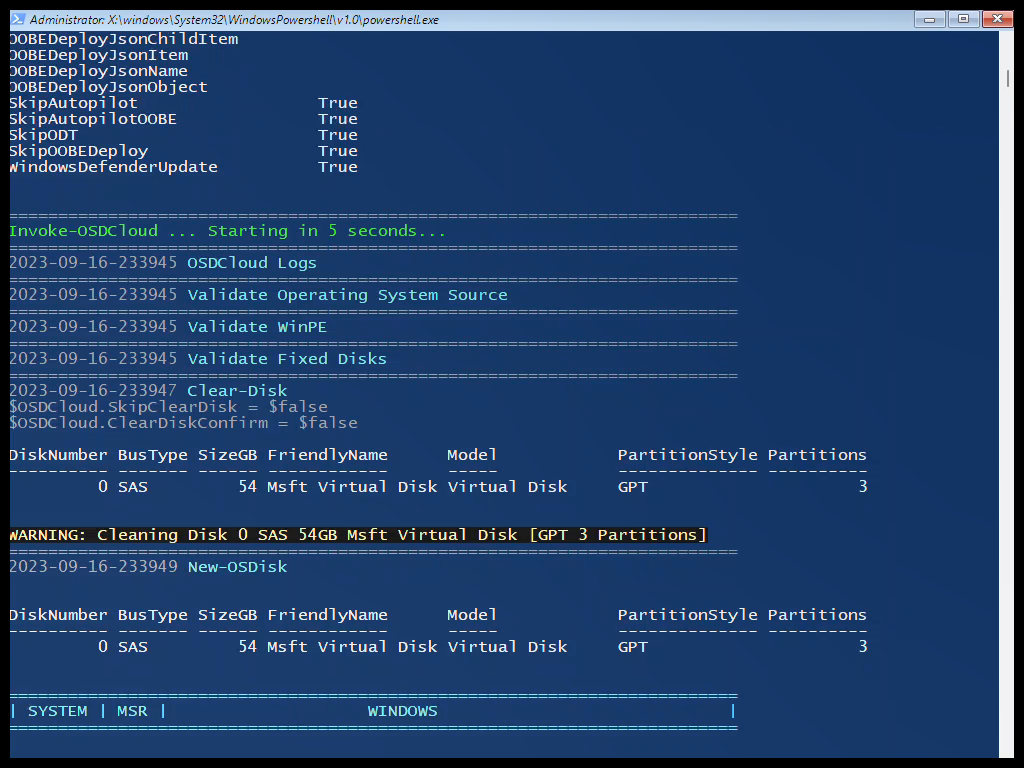
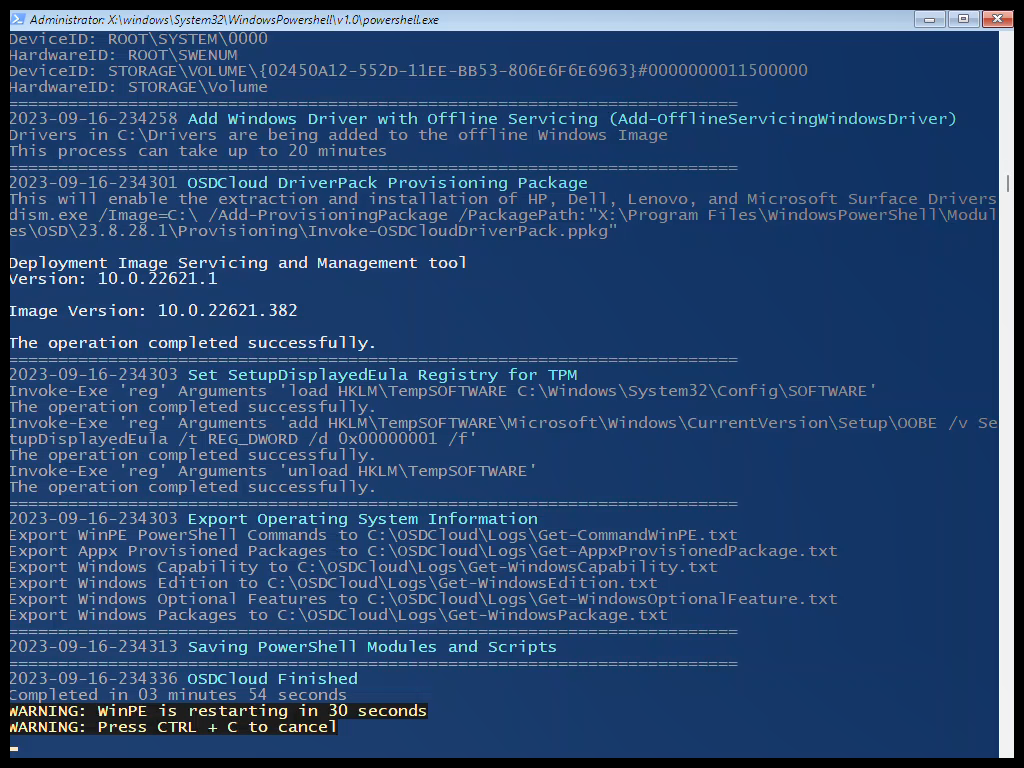
Once you hit ‘Start’, a powershell window will appear, and OSDCloud will now run. You’ll see the various steps running to Format the disk, download the OS Files, apply the OS, and eventually Reboot.
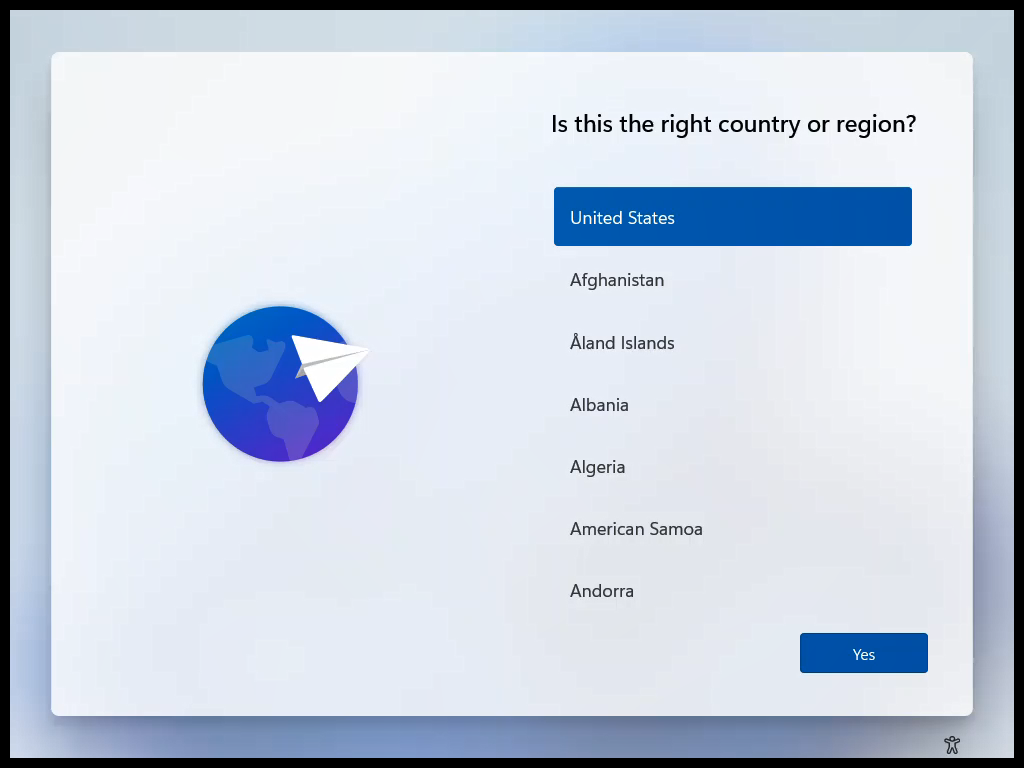
After the reboot, you will end up at the OOBE.