

README #
RunAsSystem #
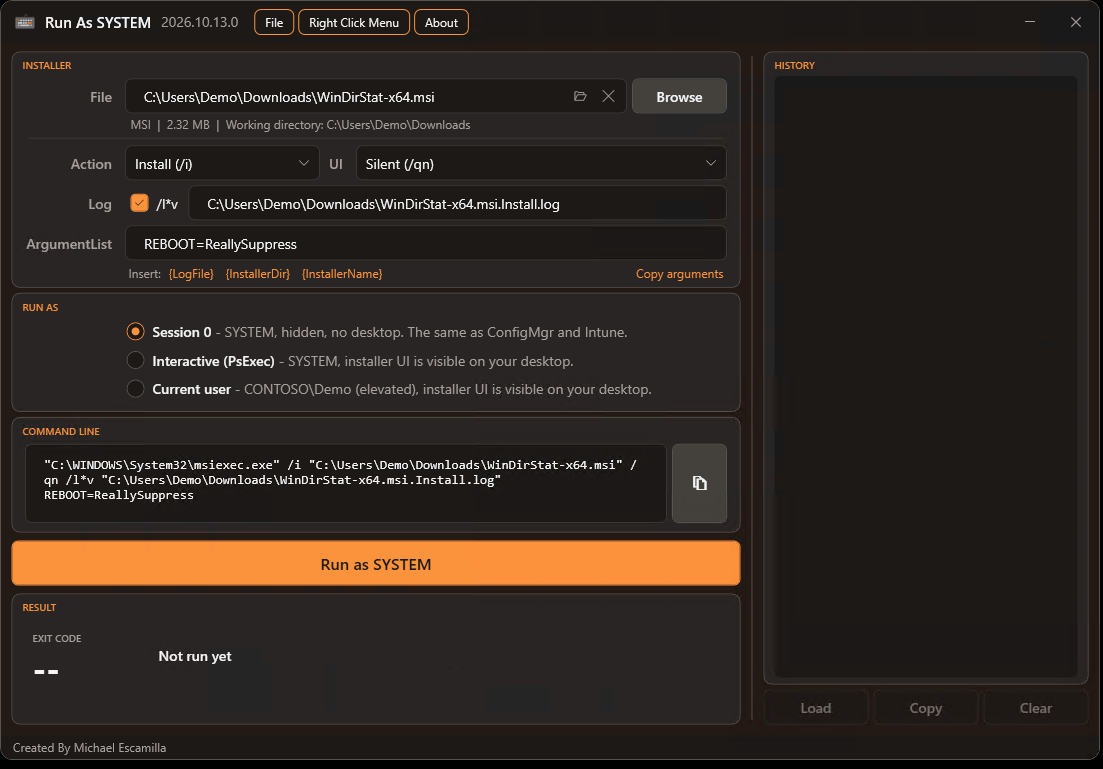
Run MSI, EXE and script installers as NT AUTHORITY\SYSTEM to test an installation the same way ConfigMgr and Intune run it, without downloading PsExec or remembering its switches.
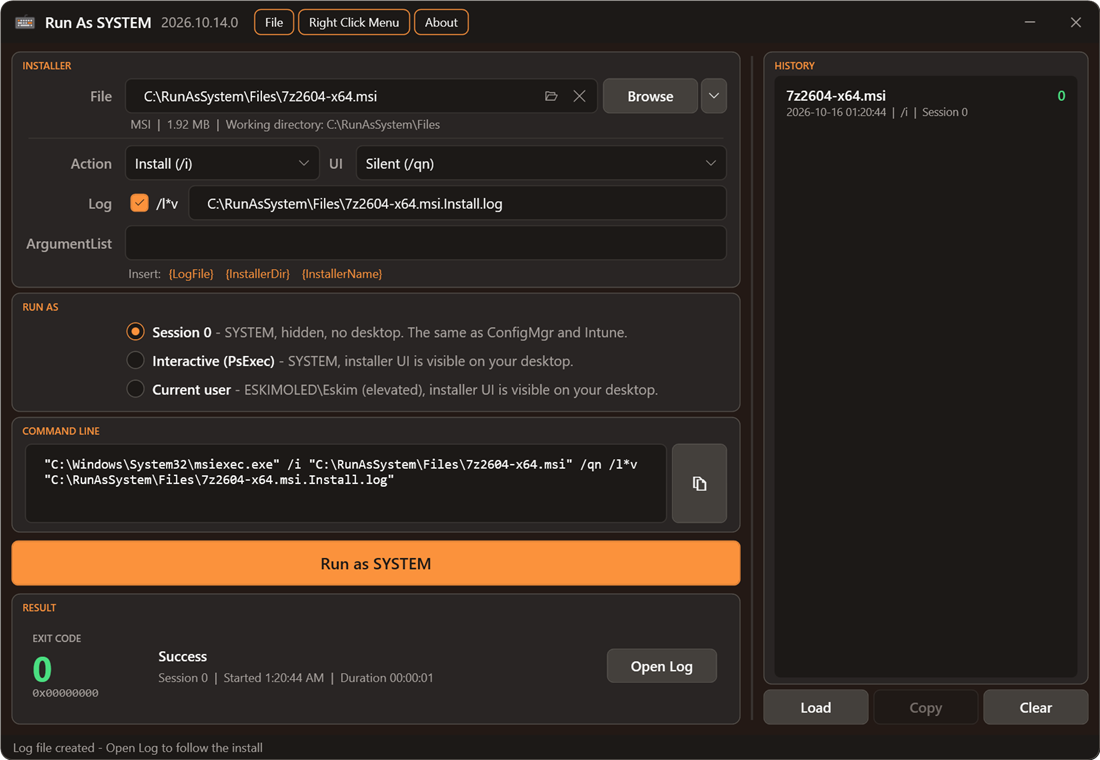
Select or drag and drop an installer, set the arguments and click Run as SYSTEM. The exit code and what it means are shown when the installer finishes.
Quick Access #
Run it straight from GitHub, or install it from the PowerShell Gallery:
Invoke-Expression #
iex (irm runassystem.michaeltheadmin.com)PowerShell Gallery #
Install-Script -Name RunAsSystem
RunAsSystem.ps1
The app needs administrator rights. If it isn’t started elevated, it relaunches itself and shows a UAC prompt.
Features #
- Three run modes: SYSTEM in Session 0 the way ConfigMgr and Intune run installers, SYSTEM on your desktop through PsExec, or your own account. See Run Modes.
- MSI, MSP, EXE, PS1, CMD, BAT and VBS, with MSI options (action, UI level and a verbose log) and PowerShell options (5.1, 32-bit 5.1 or 7,
-Fileor-Command, execution policy). See File Types and Options. - The exact command line is shown before it runs, and you can copy it.
- Exit codes explained, with the installer’s output captured in Session 0, and a Stop button. See Results.
- Run history: load a past run back into the form and run it again. See History.
- Right-click menu: a Run as SYSTEM… option on installer files in Explorer. See Right-Click Menu.
- Updates itself from GitHub or the PowerShell Gallery. See Updates.
- Drag and drop works while elevated, plus keyboard shortcuts and command line parameters. See Reference.
Documentation #
| Page | Covers |
|---|---|
| Run Modes | Session 0, Interactive (PsExec) and Current User, and things to know about SYSTEM |
| File Types and Options | What each file type runs as, MSI options, PS1 options, the Tools menu and ArgumentList variables |
| Results | Exit codes, captured output, logs and stopping a run |
| History | Saved runs, loading them again, and how arguments are protected |
| Right-Click Menu | Installing and removing the Explorer menu option |
| Updates | How the app checks for and installs updates |
| Reference | Keyboard shortcuts, command line parameters, menus and drag and drop |
Requirements #
- Windows PowerShell 5.1, or PowerShell 7. When the app relaunches as administrator or after an update, it uses the same PowerShell you started it in.
- Administrator rights
- Internet access only for the update check and the optional PsExec download
Credits #
- Ben Whitmore and Patch My PC: Ben’s Patch My PC Connectivity tool inspired RunAsSystem. It showed that an installer can run as SYSTEM in Session 0 through a one-time Scheduled Task, without PsExec. Session 0 mode is based on that approach. RunAsSystem adds a GUI, exit code descriptions, run history and a right-click menu.
- PsExec by Sysinternals, for Interactive mode.
Thanks to Ben and the Patch My PC team for sharing their work.